Shopify recently introduced that they will be adding a feature where Shopify apps can finally and easily import liquid files to Shopify stores without writing a bunch of long codes.
The feature is called App Snippets.
Note that app snippets are still on beta and is only available for Shopify development stores with a developer preview store enabled and is using the online store design experience.
What is App Snippet?
According to Shopify, App snippets are Liquid code that can be included in other Liquid files.
Now you might be asking…
Isn’t it just the same when you use the Theme API?
Yes, you’re absolutely correct. However, the difference is that when you use App Snippets instead of Theme API, Shopify store owners won’t finally need to remove liquid files in Shopify themes.
It’s a relief not just for the developers but also for the online store owners.
But… You will still have to insert one line of code to render your liquid files in their theme. Yep. But that’s better than writing a long code.
How To Create App Snippets
In this guide, we’ll take a look at how to create app snippets in Shopify using PHP. We’ll also create a liquid file that we’ll render in our development store.
Log in to your Shopify Partners account, go to the apps page, and select your app.
Then select Extensions.
We need to access the Online Store tab and so if you don’t have it beside the Shopify admin tab, then click the Manage extension areas.
In the Manage extension areas, scroll down and look for the Online Store section. On its right, click the Enable extension area.
Then, go back to extensions page and you should find the Online Store tab.
Scroll down and look for App Snippets. Then click Add Snippet.
In the Create snippet page, enter a snippet title.
Notice that it ask us to drop a liquid file.
We’ll have to upload a liquid file and this is the liquid file that the app will be importing to Shopify stores. So for the sake of making this guide as simple as possible, we’ll create a very short liquid file that only displays an HTML.
Creating a Liquid File
Open your text editor and save the following code as snippet_test.liquid
<div><h1>This is an example Snippet</h1></div>Code language:HTML, XML(xml)
Once you have created the file, upload the file to the create snippet page.
Underneath the form, you should see a code snippet that looks like this.
This code is what you will be using to import the file into Shopify stores.
Now, save the snippet.
Using the App Snippet
For us to be able to use this app snippet, we’ll have to create a development store with a Developer preview enabled.
Once again, this feature is still in beta and will not work on online stores.
To create a development store, navigate to your Store pages and click the Add Store button.
For store type, select Development store.
Fill out the form and right on the Developer preview section, tick the checkbox to enable the Developer preview. This should give you a dropdown to select Online store design experience.
Hit save.
Navigate back to your Store page and log in to your development store with Online store design experience enabled.
Once you’re logged in, install the app (with the snippet applied/enabled) into your development store.
Testing the Snippet
There are two ways to test if your snippets are working.
Obviously, using Theme API is your only way to push your code to Shopify store’s theme files but since snippets are still on beta. You can test your snippet by just going to your theme files.
That’s the second way of testing your snippets. It’s by editing your liquid files and adding the snippet code into your theme.
Let’s try that.
Under the Sales Channels, select Online Store and navigate to your themes page.
In your Theme library, select the theme that the store is currently using then select Action and click on Edit Code.
Then, look for the theme.liquid and paste the snippet code right at the top of the script like below, for example:
If you save the script and check your store, you should be able to see that the snippet is working like below.
Awesome! Now you can start customizing your snippet codes and update it directly with Shopify.
Removing App Snippets on Uninstallation
With app snippets, you don’t really need to worry about the removal of your scripts from Shopify stores. App snippets will do it all for you.
But like we said in the beginning, the snippet code that we added to the theme.liquid, it will stay until the store owner removes it themselves. So it’s better to always add a note/comment that the snippet code came from your app and they should remove it once they uninstall your application.
But hey! App snippets are still on beta so who knows? Maybe Shopify will provide a way to make it happen.
Conclusion
Shopify app development has been there since the very beginning and Shopify always provide updates not just to their API but to the entire software. Now that they’re working on App snippets, Shopify developers will probably start using webhooks and other API less.
You have finally developed your very first Shopify app and you feel like it’s time to submit your application to Shopify for reviewing and publishing. However, there is a problem… You don’t know the right steps before submitting your application.
In this tutorial, we’re gonna be looking at how you can publish your Shopify app easily and guaranteed to be approved by Shopify reviewer.
Getting Started
It’s quite obvious that before you can publish your Shopify app, you firstly need to make sure that your app is 101% ready to be published. The app’s functionality must be working with little to no bugs.
Not only that, but you should also verify that your application is following the app requirements of Shopify If you haven’t read any of those, it’s best to check if your app is compatible in the app store so you won’t be disappointed in the future.
Once you’re sure that your app is compatible with the Shopify app store. The next thing you need to do is to submit it to Shopify and we’re here to teach you how to do it step by step.
But first! Again! Double-check if your app is installing properly in your development store. Otherwise, the Shopify app reviewer will ask you to fix your installation process.
Installation Process of your App
Sadly, this is one of the common mistakes of Shopify developers. If you are not fully aware of this, whenever a merchant installs your app, Shopify will use your scripts to install your application to this merchant’s store.
If you have followed our Shopify app development tutorial, you would have a script something like install.php, and this script is included in the whitelisted redirection URL(s) in the app setup like below.
Unfortunately, this script will never be loaded whenever a merchant installs your app. Instead, it will open the App URL and look for the index.php.
So the trick here is to add a condition in your index file that checks if this merchant’s store exists in your database. If it doesn’t then redirect this merchant to your install.php file.
As you can see in the example above, we used a simple MySQLi query to check our database. Then, we check if this data exists. If it doesn’t then we use the header() function to redirect the merchant to our install.php file with the shop URL of the merchant’s store.
Submitting Your App
Once you feel like you have fixed all your app issues then that’s the moment we can start our app listing. To do this, navigate to your app dashboard and click on the App listings button.
Then, once you have arrived in the app listings page, you can either use the English listing or create another listing in different language. We suggest before creating a non-english listing, you submit your app in english list first as it will expose your apps into a larger community.
As you can see above, the default listing is in English and you are required to complete the listing before you can submit the app.
By selecting the English listing, you should be redirected to the listing form.
App Listing Form
Once you arrived in the app listing form, you will see a very long form that requires you to fill in. We’ll be guiding you step by step on how to properly fill the input boxes below.
Let’s start with the listing information.
Listing information
This part is the most easiest to fill-in. All you need is the name for you Shopify app and the tagline that you want to say about your application.
App name
With app name, you can only input a total of 30 characters so it’s best to pick the perfect name for your app. We recommend picking a name with keywords that are usually used when merchants used the search box. SEO is also applied for your app name so use it wisely.
If you look closely, the app name contains only three words yet super effective that it always gets to #1 spot of search results.
Here’s how it works:
The word free is used to indicate that this app can be used for free. Then, the word shipping is also used to indicate that this app is for shipping offers, discounts, and more. Then, of course, the word bar indicates that this app is used to display a bar on the top of the store’s page. Super easy to understand the name.
Although, we recommend you experiment with this since you can always customize this even if the app is published.
App icon
Next up is the application icon. This part is surely easy to understand. All you need is to upload a 1200×1200 image with no text at all. Making your own icons should not be that much of an issue. However, if you are lacking knowledge on how to create an image. You can contact us and we’ll work for you to create a perfect image that can surely attract new installs.
Search terms (optional)
Although this is optional, we HIGHLY recommend putting at least five search keywords to boost your exposure in the search results. Like what we mentioned before, SEO is a big part of this process so use this wisely.
App Details
Next up is the application details. This is where you describe what your application is all about. This is where you can tell why your app is better than the other apps. *wink*
Promotional video (optional)
The first one is the promotional video. This one is purely optional. You can add a YouTube link here to describe what your app is all about and what it can provide.
From our experience, adding a promotional video is not that very useful. In fact, it’s just a waste of effort and time as it don’t provide that much increase in installs.
We’d rather put more additional efforts to our images than adding a promotional video.
Key benefits
This will be the section where you describe the best features of your application. This is very useful and very effective for attracting more installs. Although adding photos are optional, we highly recommend adding eye-catching photos that represent each benefit to fully take advantage of this section.
Check the following example:
For the image, it’s suggested to use 1600px by 1200px image dimension. You may download the following template for your reference.
If you want your application to be featured on the front page of Shopify app store. You must create a well-made banner. This is optional. However, to increase the chance of getting well-known through the entire community, it’s best to create a banner. Who knows? Maybe you’ll get featured and get not only hundreds of new installs but also thousands of new installs.
For banners, it’s suggested to use 1600px by 900px image dimension. You may follow the guidelines on how to create a perfect banner.
Screenshots
This section is one of the most important parts of your app listing. Based on our own research, almost 89% of merchants look at app’s screenshots almost immediately after picking an application. With that being said, it’s important to pick the right screenshots of your application.
Now, you may be asking…
“What are the best screenshots for my Shopify app?”
The first photo that you should be sharing to merchants is the result or the output when they finally installed your app. It should tell them that your app is user-friendly and easy to use. Take these screenshots as the thumbnails of your application. Make them interesting and eye-catchy. Don’t just screenshot your app and paste in the Paint and save it as PNG. Work on it. Add small details that can help merchants understand how your app works.
Always remember, your goal is to help the merchant and make things easier for them. NEVER confuse them.
There are three parts of screenshots. The first one is for desktop, the second one is for mobile, and the last one is for Point of Sale. Both mobile and Point of sale are optional but we highly recommend adding mobile screenshots since most merchants rely on mobile. So make sure your app works perfectly on mobile.
For images, the dimensions are the following:
Desktop: 1600px by 900px
Mobile: 900px by 1600px
Point of sale: 2048px by 1536px
The templates are also included in the file that you have downloaded earlier. Feel free to use them.
The detailed description section is where you provide almost everything about your application. For most application, they start their description by adding an introduction telling what the application is all about and what it can do. Then, after the introduction, provide and explain thoroughly each of your app’s key features.
The title description field allows you to use a markdown format. In other words, you can create a header/title, an ordered list, and a non-ordered list. Use this to make your description look neat and easy to read.
Never never never just create a block of long text full of paragraphs. Merchants have no time reading a letter!
Demo URL (optional)
Although this is optional, adding a demo URL can prove that your app is perfectly working especially if your app is customizing the merchant’s storefront. Otherwise, paste a URL leading to a demo page or maybe a YouTube video URL that demonstrates how the app works? That should be fine too.
Integration (optional)
If your application works with other application or devices, you can list them here.
Pricing
This section is all about the pricing of your application.
There are three types of pricing: Free, Recurring Charge, and One-Time Charge.
If your app doesn’t charge the merchants, then you can just leave the radio-button set to Free. Otherwise, set it to either Recurring Charge or One-Time Charge. Just make sure your app is using Charge API. Although there are also a way to provide both a free plan and a paid plan to your merchants. You can do that simply with Charge API.
If you want to charge your merchants and you haven’t implemented the Charge API to your application, we highly recommend following our guidelines on how to create a recurring charge API.
Contact Information
The contact information section is one of the most important part of your app listing. This is where you provide contact numbers, email addresses, and URL addresses to help the merchants contact you in case there is an issue within your application.
Review notification email
You may enter any of your email addresses here. This email address will be receiving notifications whenever there is a review on your application.
App submission contact email
You may enter any of your business/personal email addresses here. The email address you provide will be receiving updates about the app you submitted for review. Make sure to always check this email address especially after you submit your app for review.
Sales and support
All of the information you provide in the sales and support will be displayed in the app listing page and will be used by merchants to contact you. So make sure you use business related email addresses and phone numbers. Be prepared because you will get contacted a lot by merchants especially if you have plenty of installs.
Tracking (optional)
If you want to track your application then feel free to add Google analytics ID and more. It don’t really matter since Shopify has its own analytics page.
Install requirements (optional)
This part is very useful especially if you want to lessen the amount of uninstalls of your app. If your app requires certain settings then you can adjust it here in this section.
App review instructions
And finally, last but not the least. The app review instructions is the part where you explain to the Shopify app reviewer how to use your application and what it should be doing. It’s important to explain everything in detail and it should be step by step.
For example, start from installations, to settings, and end to output.
Review Duration
Once you have finally submitted your app to Shopify, an employee from Shopify will start reviewing your app and this process usually takes around 2-3 days depending on how complex your application is.
You shouldn’t be scared of this process. We agree that this part takes time but if your application is working perfectly then no doubt your app will get published as soon as possible.
However, if you get a response saying that you need to fix something then that’s also good! That means you avoided getting a negative review from merchants.
Conclusion
Developing Shopify apps can be a tedious task but submitting your app to Shopify is much harder especially if your app is not meant to be submitted yet. So we suggest before submitting your app, check it thoroughly and make sure there’s no flaw at all.
If your app get rejected, don’t worry, you have a full month to respond to the reviewer for rechecking the application.
If you are a gamer (like most people), you probably thought of making your own video game or at least wonder how video games are developed.
Video games are made to entertain people, like you and me.
To be able to create a video game, you must understand first the purpose of your development and how knowledgeable you are when it comes to programming.
Of course, game development is not for everyone. If you are a programmer and you only develop software, sometimes you will feel like you are out of your zone.
Game development offers a TON of work and responsibilities. To be able to create an amazing game, you would need to understand how to design a game, how to program the game, how to write music and etc. These things form the actual game. Without one of these (let’s say music), the game would feel… empty… or… boring.
As a game developer, it is your responsibility to entertain gamers. To make them feel emotions that you want them to feel.
In this article, we’ll be guiding you on how to develop a video game using JavaScript and HTML5. If you don’t have any knowledge about vanilla JavaScript and HTML5, then this course is perfect for you as we’ll explain to you every part of game development that you need to know.
Although if you’re already a game developer yourself, then, you have the advantage to understand what’s going on.
But first…
What is a video game?
A video game is a digital game designed mainly for personal computers. Although there are other electronic machines like game consoles designed for playing games.
Video games are created in different ways. Some games are developed using game engines like Unity or Unreal. Some games are created using a plain code like Python or C++.
Choosing a way of developing games completely depends on your knowledge of programming languages. If you know how to code in C#, then Unity may be the best option for you. If you know C++ then Unreal engine is the one that could help you.
Understanding your knowledge about programming is your starting point to becoming a game developer. Of course, everyone’s different. You may find it easy to understand game development or you may find it not.
My tip for you is to find your comfort zone as it will lead you to your success. Otherwise, you will end up just giving up.
Introduction to Game Development
In every game development, you will find it very common to see a game loop and no we’re not talking about the game over and replay. We’re talking about the frames that loop back and forth inside your game.
This loop is very important due to its ability to check what is going on inside the game frame. Whether it is a keypress event or a mouse event, the game loop will always detect it.
Another thing to remember before starting game development is that… Mathematics is very important. You will always be doing computations and stuff just to be able to go from one point to another.
Anyway…
For this course, we’ll be doing a very simple game. A single game to be precise. We’ll be developing a classic ping-pong game using vanilla JavaScript and HTML5.
For this, you will only need a text editor like Notepad++ or Sublime.
How to develop a pong game with JavaScript & HTML5
To start developing a single-player pong game using vanilla javascript and HTML5, open your text editor and copy the following code.
Keep in mind that it is best to always create a new folder for every time you create a new project. That way your files will be organized and easier to be accessed.
Refresh the page and you should see the object inside the canvas.
Awesome! Now let’s make the ball move around the canvas.
Making the ball move around
To do that, we will need to declare a set variable so just below the var radius = 15; add the following code.
var distanceX = 2;
var distanceY = -2;Code language:JavaScript(javascript)
Next, inside the drawCanvas() function and just below the call of drawPlayer() function, add the following code.
x += distanceX;
y += distanceY;
Save your code and you should have the following output.
Now there’s the issue, why is the canvas drawing a line instead of moving the circle? Well, technically the ball is moving but the problem is that the ball gets redrawn inside the canvas and over the previous balls.
To fix this, we’ll need to clear the canvas every time a new frame arrives.
So, once again, inside the drawCanvas() function and just above the drawPlayer() function, add the following line of code.
Fixing the issue of the ball going through the canvas
The next thing that we’re going to do is to make sure that the ball won’t go through the canvas.
To do this, we’re gonna need to learn about collisions. We’ll need to check if the ball’s position is near the edge of the canvas. If it is, we’ll bounce it off the edge and so on and so forth.
Inside the drawCanvas() function and just above the x+= distanceX;, copy the following code.
And then, make sure that you call this new function inside the drawCanvas() function.
Just below the call of drawPlayer() function.
drawPaddle();
Save your code and you should have the following output.
The next thing that we’re going to do is to make this paddle movable horizontally with key presses.
Making the paddle move on keypress event
As soon as the player holds the left key, the paddle should slowly or quickly move to left and as soon as the player holds the right key, the paddle should move to the right.
To do that, we’ll need to declare a couple of key handlers.
So go back to your script and copy the following lines of code.
With your code being saved, you should be able to move your paddle like the output below.
With that, you should also be able to see that there’s an issue with the paddle and the ball.
The paddle can currently go through the canvas, and the ball can go through the paddle.
So to fix those issues, we’ll update the if statements that we just added before and we’ll add another if statement to check if the ball hits the paddle.
With your code being saved, you should have the following output.
Cool! Now everything seems to be working.
Now let’s add something to our code to check if it falls through the canvas. If it did, then we’ll restart the game. Let’s just make it simple.
Add the following code inside the drawCanvas(), just underneath the if statements that we just added earlier.
if( y + distanceY > canvas.height ) {
location.reload();
}
Save your script and you should see the game restarts as soon as the ball touches the bottom corner of the canvas.
Building the brick field
After all the lines of codes we just made above, we have finally developed the most part of the game. We already have a game over function, keypress event handlers, and the ball.
The next thing that we’re going to do is to actually build the bricks for our player to destroy using the ball.
To do this, we’ll be creating another set of variables and a looping statement so we won’t manually put the bricks on the canvas one by one.
We’ll also create a new function for drawing the bricks, the same as how we draw the ball and the paddle. You may already see the pattern we do here.
Alright, so just below the variables in our code, copy the following.
var brickRowCount = 3;
var brickColumnCount = 9;
var brickWidth = 55;
var brickHeight = 16;
var brickPadding = 10;
var brickOffsetTop = 25;
var brickOffsetLeft = 25;
var bricks = [];
for( var c = 0; c < brickColumnCount; c++ ) {
bricks[c] = [];
for( var r = 0; r < brickRowCount; r++ ) {
bricks[c][r] = { x: 0, y: 0 };
}
}
functiondrawBricks() {
for( var c = 0; c < brickColumnCount; c++ ) {
for( var r = 0; r < brickRowCount; r++ ) {
var brickX = ( c * ( brickWidth + brickPadding ) ) + brickOffsetLeft;
var brickY = ( r * ( brickHeight + brickPadding) ) + brickOffsetTop;
bricks[c][r].x = brickX;
bricks[c][r].y = brickY;
context.beginPath();
context.rect(brickX, brickY, brickWidth, brickHeight);
context.fillStyle = "gray";
context.fill();
context.closePath();
}
}
}Code language:JavaScript(javascript)
Next, inside the drawCanvas() function and just below the call of drawPaddle() function, copy the following code.
drawBricks();
Save your code, and you should see the same following output.
Great! Now let’s work on how we can destroy these bricks with collisions.
Breaking the bricks!
We finally have the bricks being displayed on the canvas, but the ball is still not interacting with it as it goes through them.
What we need to do is to apply the same method that we did to our paddle but the difference is we need to destroy the bricks if the ball hits them.
To start, let’s create a new function where we calculate the collision that is happening within our game. We’ll be using the same looping statement that we did before as we are using a two-dimensional array for our brick objects.
functioncollisionDetection() {
for( var c = 0; c < brickColumnCount; c++ ) {
for( var r = 0; r < brickRowCount; r++ ) {
var b = bricks[c][r];
if( x > b.x && x < b.x + brickWidth && y > b.y && y < b.y + brickHeight ) {
distanceY = -distanceY;
}
}
}
}Code language:JavaScript(javascript)
Next, we’ll have to add a new property to each of our brick object. This property will tell if the current brick is destroyed or not.
We’ll call this property status.
If the status property is set to 0, then the brick should be destroyed.
If the status is set to 1, then the brick should still be on the canvas.
Find the following line of code:
bricks[c][r] = { x: 0, y: 0 };
And change it to:
bricks[c][r] = { x: 0, y: 0, status: 1 };
Next, we need to check the status of each brick. So for the drawBricks() function, update the following code from.
functiondrawBricks() {
for( var c = 0; c < brickColumnCount; c++ ) {
for( var r = 0; r < brickRowCount; r++ ) {
var brickX = ( c * ( brickWidth + brickPadding ) ) + brickOffsetLeft;
var brickY = ( r * ( brickHeight + brickPadding) ) + brickOffsetTop;
bricks[c][r].x = brickX;
bricks[c][r].y = brickY;
context.beginPath();
context.rect(brickX, brickY, brickWidth, brickHeight);
context.fillStyle = "gray";
context.fill();
context.closePath();
}
}
}Code language:JavaScript(javascript)
to…
functiondrawBricks() {
for( var c = 0; c < brickColumnCount; c++ ) {
for( var r = 0; r < brickRowCount; r++ ) {
if(bricks[c][r].status == 1) {
var brickX = ( c * ( brickWidth + brickPadding ) ) + brickOffsetLeft;
var brickY = ( r * ( brickHeight + brickPadding) ) + brickOffsetTop;
bricks[c][r].x = brickX;
bricks[c][r].y = brickY;
context.beginPath();
context.rect(brickX, brickY, brickWidth, brickHeight);
context.fillStyle = "gray";
context.fill();
context.closePath();
}
}
}
}Code language:JavaScript(javascript)
Now, the next thing we need to do is to add the brick status property in the collisionDetection() function.
If the brick is not destroyed, we will check whether the collision is happening or not.
If there’s a collision, we’ll set the status of the brick to 0 so it won’t be drawn inside the canvas.
To do that, we’ll have to update our collisionDetection() function to the following.
functioncollisionDetection() {
for( var c = 0; c < brickColumnCount; c++ ) {
for( var r = 0; r < brickRowCount; r++ ) {
var b = bricks[c][r];
if(b.status == 1) {
if( x > b.x && x < b.x + brickWidth && y > b.y && y < b.y + brickHeight ) {
distanceY = -distanceY;
b.status = 0;
}
}
}
}
}Code language:JavaScript(javascript)
The last thing we need to do is to activate our collision detection function.
To do that, add the following line of code to the drawCanvas() function, just below the drawPaddle() function.
collisionDetection();
Save your script, and you should have the following output.
Next steps
Congratulations! Now you have successfully developed your simple yet fun single pong game. You can finally move the paddle and make the ball bounce around the canvas and destroy the bricks.
If you want, you can adjust the variables and see what changes it does to the game.
Yes, the game is not totally finished as you still need a game scoring system, a sound, and a user interface.
The main purpose of this course is to introduce you to the idea of how to develop a game using vanilla javascript and HTML5.
If you have suggestions or questions, don’t hesitate to comment down below and we’ll do our best to help out.
Did you know that you can earn money when you develop Shopify apps? Yes, you can!
When you create Shopify apps, you’re obviously allowed to either charge your users only for one-time or monthly. You can even not charge them at all.
You can do this by implementing Billing API which is divided into four different API resources:
RecurringApplicationCharge
ApplicationCharge
UsageCharge
ApplicationCredit
In this article, we’ll be focusing more on implementing monthly charges to users who use your Shopify apps which of course we’re talking about RecurringApplicationCharge.
But…
before we go deeper into that topic. Let’s understand first…
What is Billing API?
Billing API is an API used by Shopify apps for collecting a one-time charge, a fixed monthly fee, or a monthly fee based on the usage of the users.
Like what we have mentioned before, Billing API is divided into four API resources:
RecurringApplicationCharge which is used for charging users every 30-days;
ApplicationCharge used especially by apps that provide free-trial then charge a one-time payment after the trial ended;
UsageCharge used for charging users depending on their usage, and
ApplicationCredit is used for future purchases inside the app hence the name ApplicationCredit.
There are several reasons why you should use Billing API for charging your users.
The payment appears directly on the merchant’s Shopify invoice. They don’t have to enter their credit card details to pay for the apps.
Higher conversion rates because payments come directly from Shopify.
Tax is 100% correct and charged automatically
Lastly, Shopify handles all the chargebacks.
How it works?
When you implement Billing API to you Shopify apps, the API usually process in the following flow:
01
Triggers the Billing charge
This can be done by the merchant either by installing the app or by clicking on a button.
02
The app creates the charge
The app will create the Billing which can be either one-time charge or recurring charge.
03
Shopify verifies the charge
Shopify will verify the charge created by the app and once verified, Shopify will redirect the merchant to the confirmation_url
04
Merchant confirms the charge
If the merchant confirms the charge, he/she will be redirected to the return_url specified in the API. Otherwise, notify that the charge was declined.
We have a Shopify App Development Course! Be one of the first students!
Are you looking for an in-depth guide on how to create Shopify apps? Click the enroll button to get started!
Creating a charge using the RecurringApplicationCharge resource is very easy and it takes just a couple of lines of codes to be able to create a charge.
If you have been following our Shopify app development tutorial series, you have the advantage of learning this course much easier because we’ll be using the very same method as before.
In this course, we’ll assume again that you have followed our Shopify app development course and you’re using the very same files like ours.
To start, open your index.php file and add the following HTML code.
<hr><strong>Aha!</strong><p>You're still using our free trial. Click the upgrade button below to have access to more awesome features!</p><ahref="upgrade.php?<?php echo $_SERVER['QUERY_STRING']; ?>"target="_blank">Upgrade</a>Code language:HTML, XML(xml)
To help you catch up. This is our full index.php file. Feel free to copy it. Just make sure to replace the value of $token and $shop variable.
<?phprequire_once("inc/functions.php");
$requests = $_GET;
$hmac = $_GET['hmac'];
$serializeArray = serialize($requests);
$requests = array_diff_key($requests, array( 'hmac' => '' ));
ksort($requests);
$token = "xxxxxxxxxxxxxxxxxxxxxxxxxxxxxxxxx";
$shop = "weeklyhow"; //change this to your store subdomain.//for example://test-store.myshopify.com//your $shop variable is://test-store?><!DOCTYPE html>
<html>
<head>
<title>Shopify Example App</title>
</head>
<body>
<h1>Shopify App Example by WeeklyHow</h1>
<hr>
<strong>Aha!</strong>
<p>You're still using our free trial. Click the upgrade button below to have access to more awesome features!</p> <a href="upgrade.php?<?php echo $_SERVER['QUERY_STRING']; ?>" target="_blank">Upgrade</a></body></html>Code language:PHP(php)
Make sure to copy the code above and write it below the $shop variable.
Next, once the code above is processed successfully, our $charge variable will give us a confirmation URL that we can use to redirect our users to the payment confirmation page.
And that’s it! We can now save the scripts and see the results.
There’s our result! Now, if we click the upgrade link, we should be redirected to the payment confirmation page like below:
If in case you received an error like below, that means you’re using a development store or your billing API is not on test mode.
To successfully create a charge. Make sure you test the app with your upgraded Shopify store.
Activating the charge
If the merchant accepts the confirmation and paid your app for the monthly subscription, you need to activate the charge so the merchant can enjoy all the benefits awaiting for the merchant.
To do that, we’re going to modify our index.php once again and add the following code. Just below the $shop variable.
The code above will simply check if the Billing API has successfully provided a charge_id. If so, then we create an array of data to pass onto the next API call which will activate the charge.
Make sure you replace the value of the return_url with your development store URL or if you are using a database, just retrieve the merchant’s store URL.
By saving and running your Shopify app, you should see the following.
Not only that, but you will also receive an email that says your charge is approved which is awesome!
Conclusion
Congratulation! Now you can earn money with your Shopify app. But wait a minute, what’s the next step? After activating their subscription, how can I give the merchants the benefits of paying for the app?
The answer is very simple. Just verify if the merchant’s subscription is currently active. If it is, then the app should provide more features. Otherwise, give only the features that are only available for non-paying merchants.
Database is your friend here.
Using database, you can store their subscription’s status and there you can check if the merchant’s subscription is active or not.
If you’re a Shopify Developer, you might not know that one of the most powerful features of Shopify is the script tag API. It’s an API that allows Shopify apps to import javascript files to give more custom features for Shopify stores.
For example, you’re planning on creating a Shopify app that displays a coupon code. Some themes don’t provide that feature but you can do that by adding a script tag with a source URL coming from your server and that script has a callback function that communicates with your Shopify app to get the coupon codes from the store’s database.
Sounds too complicated? Don’t worry, we’ll explain this further so keep on reading.
Getting started
Whatever you’re trying to build, the script tag API will give you a way to add your javascript to your customers’ Shopify stores without making them import your script files manually.
In this tutorial, we’ll learn everything you need to know to be able to build a Shopify app that displays an HTML code in the storefront. We’ll also cover all the things that you can do to control your customer’s front store using pure JavaScript and HTML/CSS.
Also, we’re going to assume that you already have your Shopify app created using PHP and Shopify Repository by Nyalex so if you don’t have a Shopify app yet, we recommend you to learn how to create a Shopify app from scratch.
What is Script Tag?
Just like any other Shopify API, script tag is an API object that you can create, update, and delete on the Shopify store. It might seem a little confusing especially if you’re familiar with the other type of script tag which is enclosed with angle brackets (also known as <script>).
So to clear things up, script tag in Shopify is an API object and script tag in HTML is a code for sourcing a javascript file.
If you have questions, don’t hesitate to ask it out in the comments below and we’ll answer that as soon as we can.
Alright, so let’s proceed.
The first thing we need to do obviously is to create a script tag using Shopify API. However, there are two things that you need to do first before you can successfully create a script tag.
Ask a permanent access token with write_script_tags scope / permission
Create a javascript file for sending to Script Tag API
Video Tutorial
If you prefer to watch video tutorials, you may click this video
How to use Script Tags
The following are the step by step guide on how to use script tags in Shopify.
Installing Script Tag
Now, let’s assume we have the following install.php script.
The PHP script above is a basic example of installing Shopify app to your customers.
As you can see, we have the $_GET variable for Shopify store URL and the API key which you can retrieve from your Shopify Partner dashboard under the app credentials.
Now, we have the $scopes variable.
This variable contains a string which is required for asking very specific permissions to Shopify stores. For example, you want to create a Shopify app that will retrieve all the products. Then you may use the read_products scope.
To be able to add scripts to your customer’s store, you need to use the scope write_script_tags.
In your install.php file, update the scope variable to:
Keep in mind that there must be NO spaces in the string.
List of Shopify API Access Scopes
To successfully access the Shopify API, you are required to ask your customers for permission to allow you to access their resources. You may use the following authenticated access scopes for that.
read_content write_content
Used for accessing blog posts, comments, pages, and redirect
read_themes write_themes
Used for accessing themes and assets
read_products write_products
Used for accessing products and collections
read_product_listings
Used for accessing product listings and collection listings
read_customers write_customers
Used for accessing customers’ data
read_orders write_orders
Used for accessing orders, fulfillments, and other transactions
read_all_orders
Used for accessing all orders instead of the default window of 60 days worth of orders. (If you are going to use this scope, make sure you used this with read_orders, or write_orders scopes. You also need to write a request to Shopify before adding this scope to your app.)
read_draft_orders write_draft_orders
Used to access draft orders
read_inventory write_inventory
Used to access inventory
read_locations
Used to access locations
read_script_tags write_script_tags
Used to access script tags
read_fulfillments write_fulfillments
Used to access fullfillment services
read_shipping write_shipping
Used to access to carrier services, country, and province
read_analytics
Used to access Analytics API
read_users write_users
Used to access users (Available for Shopify Plus only)
read_checkouts write_checkouts
Used to access checkouts API
read_reports write_reports
Used to access Reports API
read_price_rules write_price_rules
Used to access Price Rules
read_discounts write_discounts
Used to access GraphQL Admin API – Discounts features
read_marketing_events write_marketing_events
Used to access Marketing Event
read_resource_feedbacks write_resource_feedbacks
Used to access Resource Feedback
read_shopify_payments_payouts
Used to access the Shopify Payments Payout, Balance, and Transaction resources
read_shopify_payments_disputes
Used to access the Shopify Payments Dispute resources.
Installing Shopify App
Assuming you followed our Shopify app development tutorial. You can install your Shopify app into your store using the following URL:
Keep in mind that your-shopify-app-website is your host where your Shopify app source files are uploaded in. And your-shopify-store.myshopify.com is your shopify store URL.
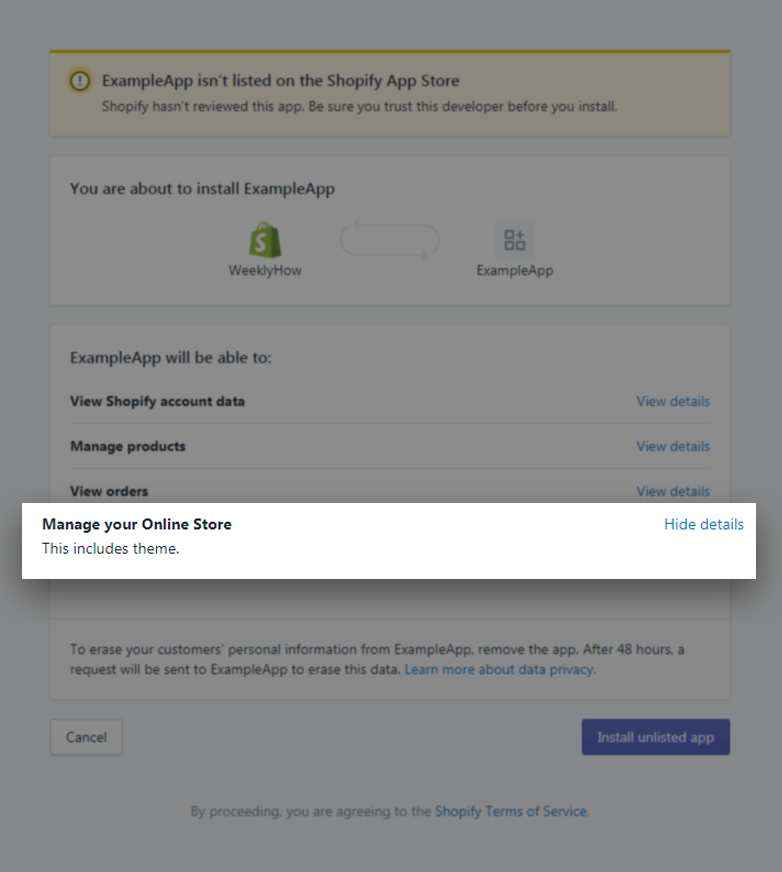
After loading that URL, you should see the following:
Notice that there is Manage your Online Store.
Once your customers installed your app, your app will have access to your customers’ storefront and that’s where the magic happens.
Creating JavaScript for Script Tag API
Now that your Shopify app is installed to your store. You can start using Shopify API to import your script to your customer’s storefront.
But how?
Before we proceed to add the javascript to our store. Let’s create the file first.
Open your preferred text editor and create a javascript file called shopify.js.
jQuery(document).ready(function() {
console.log('Thanks for reading WeeklyHow\'s Tutorials!');
});
Code language:JavaScript(javascript)
Assuming you have uploaded this script into your host scripts folder. You can access this file through:
Before you test your app, make sure you have replaced the value of the variable $token. Keep in mind that each store have its own unique access token so make sure you get the access token which is generated by your generate_token.php. You can also store the access token to the database so it’ll be much easier for you to retrieve it whenever your customers use your app.
Notice as well the value of the $array, this variable is a multi-dimensional array so be careful of creating this variable.
The first key of our array is the script_tag and its value is another array which has two keys. event and src.
By default, event should always have a value of onload. To be clear, there are no other values available for the event key. However, it is important to always initialize this whenever you create a script tag.
The next key is src. This key is used to source the file that you want to import to your customer’s storefront. In the code above, we have sourced the link https://your-shopify-app-website/scripts/shopify.js.
Make sure you replace this with the URL you have in your domain.
$array, this variable is a multi-dimensional array so be careful of creating this variable.
The first key of our array is the script_tag and its value is another array which has two keys. event and src.
By default, event should always have a value of onload. To be clear, there are no other values available for the event key. However, it is important to always initialize this whenever you create a script tag.
The next key is src. This key is used to source the file that you want to import to your customer’s storefront. In the code above, we have sourced the link https://your-shopify-app-website/scripts/shopify.js.
Make sure you replace this with the URL you have in your domain.
Testing the App
Once you’re done with everything, you can open the Shopify app. If you haven’t seen any errors and such, you may proceed to your Shopify store and open the console.
If you’re using Google Chrome, you may open the console by pressing CTRL + Shift + I.
If you’re using Firefox, just right-click the window and press Q.
There you have it! You have successfully displayed a message in your Shopify store.
“But that’s boring! No one will actually look at their browser’s console just to see that message. We want to show it as soon as the guests arrive at our customers’ store” – Everyone 2019
Chill! Well, since we already displayed a sample message, it’ll be much easier to append HTML/CSS codes. Thanks to JavaScript!
Alright, for example, we want to display a bar on the top of the page saying that we’re on a sale. You can do that by using the following example code in your javascript:
Feel free to change the text to “We’re on 100% Sale!” (Wow)
Conclusion
There you go! You have successfully displayed a message in your customer’s storefront. I suggest you experiment with this API because like we said before, you can do almost everything with script tag API.
But there’s always a downside with this.
Everything will only load once the whole document is loaded. That’s why if you noticed, whenever you reload your store, the message will only display a couple of seconds later.
If you enjoyed this article, feel free to share your thoughts! Do you have questions? Let us know in the comments below!
One of the advantages of Shopify development is being able to customize your theme without programming. However, there are instances that you may want to make your store look a certain way. Now here’s the problem. Your theme doesn’t allow you to customize it. Because of that, your only option is to build the theme features yourself.
As an example, you may want to add social links under your products so customers can either bookmark the product or share it with their friends.
In this tutorial, we’re going to learn about Shopify theme development to customize or create a custom Shopify theme with Slate, all from scratch.
Getting Started
To start building a custom theme for Shopify, you need to create a partner account. You can do this by going to their official partner page and by clicking the “join now” button.
After you create a partner account, you can create a free development store to test your custom themes as you build it.
After creating a development store, Shopify will redirect you to your store admin page. There you can start adding products, collections, etc.
Now, to make this tutorial short but handy, I will assume that you already have products and collections. Why? because we want to focus on theme development. Besides, adding products and collections is very easy. You can do that by yourself 😉
Theme Development Tools
The next step in building Shopify themes is to select which theme development tools you’d want to use. Currently, there are three theme development tools for creating Shopify themes:
Slate
Shopify Theme Kit
Shopify online code editor
Slate
If you have experience with command prompt then Slate might be a good option for you. Slate is more of a command-line tool for developing Shopify themes. It works to help you speed up the process of your development, testing, and deployment to Shopify.
Shopify Theme Kit
Another tool for theme development is the Shopify Theme Kit. It is also a command-line tool that allows you to upload themes into multiple environments.
Now, what is the difference between Shopify Theme Kit and Slate?
Slate is a tool built on top of ThemeKit whereas ThemeKit is just a client with the themes API which is why it allows you to use whatever tools you need on top.
Shopify Online Code Editor
If you’re lazy downloading tools or anything, this is the tool that you may want to use. A very basic code editor for developing Shopify themes. The only disadvantage with this tool is that it doesn’t allow you to create the actual files.
Which Shopify theme development tool do you think is the best? I would say, Slate.
Why? because I believe with Slate, you have more control over your projects compared to the rest of the tools.
With that being said, we’re going to create a custom Shopify theme using Slate.
Create a New Theme with Slate
Creating a new theme with Slate is very simple. All you need to run a single command and command prompt will do all the job for you.
npx create-slate-theme name-of-my-theme
npx
A tool for using packages from npm registry
create-slate-theme
A package that allows users to create a new Slate project with a single command.
name-of-my-theme
Name of your project. (must be lowercased and no use of spaces. If so, use a dash instead)
We highly recommend using either yarn create or npx to create a new Slate project. If you don’t know any of these, we suggest you learn NodeJS.
If you already have node installed on your computer, run the following command with command prompt.
mkdir WeeklyHowCustomTheme && cd WeeklyHowCustomTheme
And then use the command
npx create-slate-theme weeklyhow-theme
Once the command-line finished processing. Use the following command to select your project:
cd weeklyhow-theme
Create a Private App
In your Shopify Admin Dashboard, navigate to apps and select Manage apps.
Then select Create a new app.
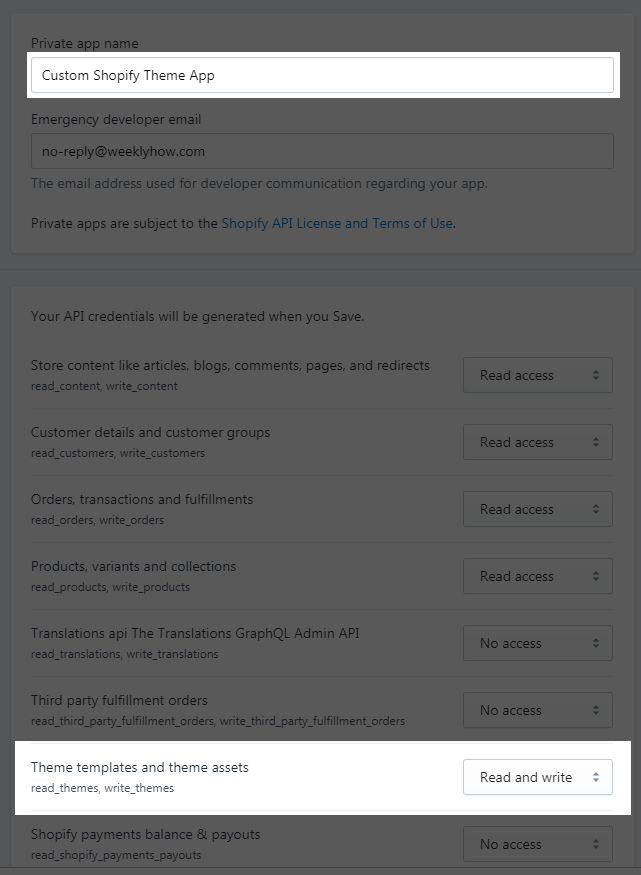
Fill up the form and make sure to change the value of theme templates and theme assets to “Read and write”
Hit “Save” and click “I understand, create the app“
Connecting to your Store
Now that you have created your Slate project and your Shopify private app. You may proceed to your project folder and open and modify the .env file.
# The myshopify.com URL to your Shopify store
SLATE_STORE={store-name}.myshopify.com
# The API password generated from a Private App
SLATE_PASSWORD=
# The ID of the theme you wish to upload files to
SLATE_THEME_ID=
# A list of file patterns to ignore, with each list item separated by ':' (optional)
SLATE_IGNORE_FILES=config/settings_data.json
# The timeout for upload theme (optional)
SLATE_TIMEOUT=2mCode language:PHP(php)
SLATE_STORE
The URL of your Shopify store. Keep in mind that https:// or anything is not necessary.
SLATE_PASSWORD
Your password is located at the Admin API section of your private app. https://{store-name}.myshopify.com/admin/apps/private
SLATE_THEME_ID
Slate theme ID is the identification number of the theme you wish to upload your files into. You can find your theme ID by navigating to https://{store-name}.myshopify.com/admin/themes.xml
Again the value between the id tag is your SLATE_THEME_ID.
SLATE_IGNORE_FILES
This setting allows you to ignore files from being uploaded to your Shopify store. By default, we want this setting to have a value of config/settings_data.json. This JSON file contains all the data for our theme development but we don’t want this file to overwrite what’s on our Shopify store.
SLATE_TIMEOUT
Setting for request timeout. If you have large files in your project that may take longer than a few seconds to upload then you may want to increase this value. We’ll leave this to 2m (2 minutes) at the moment.
Creating a self-signed SSL Certificate
As you may have guessed it already, Shopify must be served via https. Even if we are under development, installing an SSL certificate is a must.
To create a self-signed SSL certificate, we have to install brew. Now, since we are using Windows PC, we will install chocolatey instead.
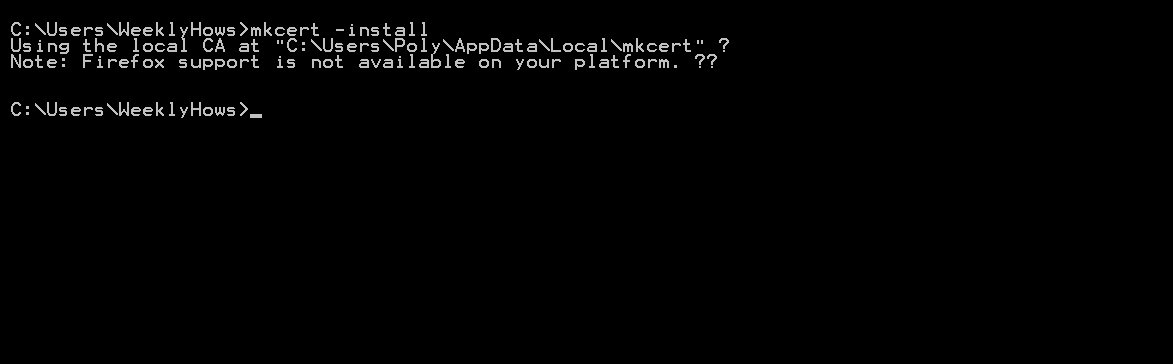
Open another command prompt and run the following command
Create React App (also known as React.js) is a tool that was built by Facebook developers that provides you everything you need to start building React apps. Create React App is an officially supported way to build a single-page React app. It offers a common build setup with less configuration requirement.
Before you can start building a React app from scratch, you need to install Node.js.
What is Node.js?
Node.js is a free open sourced, cross-platform runtime environment for creating server-side and networking applications. It was developed by Ryan Dahl and other developers who work at Joyent in the year 2009.
Node.js uses an event-driven, non-blocking I/O model that makes it very efficient meaning all process will be processed asynchronously. Keep in mind that Node.js is single-threaded, meaning all of the users will be sharing the same thread and commands that are raised will be handled in the order that they were raised.
Install Node.js
If you have not installed Node.js before or let’s just say you installed an older version of Node.js awhile back, you will need to either install a new one or update it.
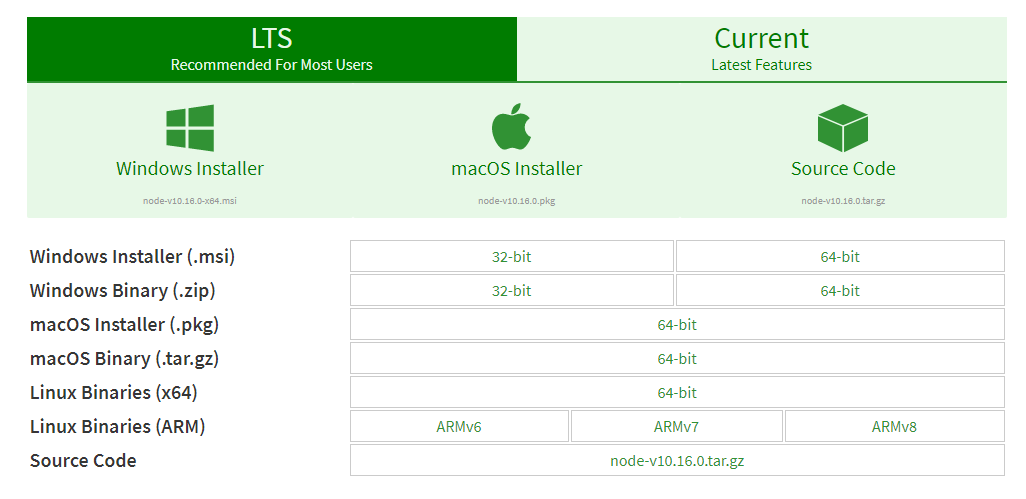
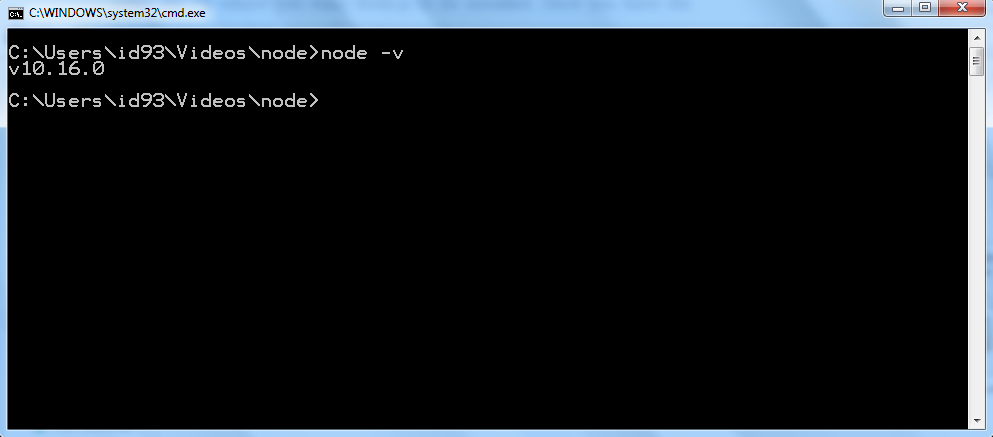
The easiest way to install Node.js is to navigate to nodejs.org and choose from one of the installers that you see on the first page. We’re going to install version 10.16.0 instead of the latest version. Assuming that LTS is more stable than the latest one.
Another way to download Node.js is by clicking on the downloads tab and select the OS where you want Node.js to be installed. Once you have the installer downloaded, you will need to run it.
You may just leave the options in the setup and just keep on clicking next. However, if you wanted to change the destination of Node.js installer, you could do so.
Once you are finished installing, then you have successfully installed Node.js.
Now, to test if you have actually installed Node.js.
Open up the command prompt (for Windows users) or the terminal (for Mac users) and type in:
node -v
By doing so, you will see the version of Node.js that you have installed! Congratulations! Now you can start developing apps.
Now how do you…
Create React Apps?
To create a react app, you just need to simply type in the following code:
Keep in mind that the codes above will create your app in your local folder. Like:
C:\Users\WeeklyHow>
If you wanted to change your working location, you may do so by using the command cd.
For example, I want to create my React app in my other drive folder. I can do that by typing the following:
cd D:\ && mkdir "Node Projects" && cd "Node Projects"Code language:JavaScript(javascript)
Notice that I used && operators. If you want to do it step by step, you can simply start with the cd command and then type in another command which is mkdir and then cd once again.
The process of the command above goes like this, I will change my directory to D:\ and if that event was executed successfully, I will make a directory named “Node Projects” and if that event was executed successfully as well, I will change again my directory to the folder that I have just created which is the “Node Projects” folder.
I know it’s not related to Node.js but I believe it is very useful for ones that don’t know how to use cmd.
Running the React app
If you encountered no errors, you will see the results in your command prompt something like this:
Success! Created my-app at D:\Node Projects\my-app
Inside that directory, you can run several commands:
npm start
Starts the development server.
npm run build
Bundles the app into static files for production.
npm test
Starts the test runner.
npm run eject
Removes this tool and copies build dependencies, configuration files
and scripts into the app directory. If you do this, you can't go back!
We suggest that you begin by typing:
cd react-tutorial
npm startCode language:PHP(php)
If that’s the case, you may start typing cd <name-of-your-app> in your command prompt and then npm start.
This will run your react app in your browser with the server localhost:3000.
the output will look something like this:
Congratulations! You have now created your first react app.
Conclusion
Creating react apps is very easy. All you need is a little setup and one line of code and voila! React app is created. If you are ready to have fun, open up your project with your favorite code editor and modify App.js located at your project folder thensrc folder.
We’ve been looking around for ages and we’ve finally realized that Shopify does NOT offer you a product search feature by title.
It sounds crazy, right?
To be honest, searching for products by the title should be one of the most important features that they should include in Products API. But unfortunately, it’s not there.
Say for instance you have a product with a title 2023 Best Basketball Item.
If you try to browse your store URL and add the GET /admin/api/2019-10/products.json?title=item
Product API should return the item above. But instead, they will throw you the following JSON result:
{"products":[]}
Code language:JSON / JSON with Comments(json)
No result. Sad.
Getting Started
In this Shopify app development tutorial, we’re going to provide you a very easy solution on how to search for products by title using Shopify product API.
Before we get started, we’ll assume that you have been following our Shopify app development tutorial series and you are using the very same files that we are using for this project.
If in case you’re using Laravel or other programming languages, fear not because everything is just the same except the code.
Okay, let me explain to you first how the process goes.
First, you will need an input box. This is where the search term is going to be retrieved.
And then, if the user pressed the enter button. We’ll make an AJAX call and pass the search term into another PHP file.
Now, since we’re going to use AJAX– that means we’re going to create another PHP file. Inside this PHP file, we’ll return all of the products from the Product API. However, we have to make sure that we filter this process by title only. Otherwise, it will take years to be processed especially if the merchant has thousands of products.
Once the Product API is finished, we’ll compare our search term to the title of each product. One by one.
Sounds too complicated?
Let us show you how to do it!
Searching Products by Title
Like we said above, to be able to make a search, we will need an input box.
Let’s say we have the following index.php file:
<?phprequire_once("inc/functions.php");
$requests = $_GET;
$hmac = $_GET['hmac'];
$serializeArray = serialize($requests);
$requests = array_diff_key($requests, array( 'hmac' => '' ));
ksort($requests);
$token = "xxxxxxxxxxxxxxxxxxxxxxxxxxxxxxx"; // Add your access token here (I highly suggest you use ENV here)
$shop = "weeklyhow"; //subdomain of your store URL?><!DOCTYPE html><html><head><title>Shopify Example App</title></head><body><h1>Shopify App Example by WeeklyHow</h1><inputtype="text"id="search"name="search"placeholder="Search for item"><inputtype="hidden"id="subdomain"name="subdomain"value="<?php echo $shop; ?>"><divid="products"></div></body></html>Code language:HTML, XML(xml)
You may have noticed that we have also created a hidden input. This hidden input is used for storing our shop subdomain. Which a requirement for our shopify_call() function.
To display the search result, we’re going to use the div element with an id of products.
Now that we have the input box, it’s time for us to use AJAX. If you don’t know what is AJAX, it means processing a JavaScript asynchronously or without refreshing the page. It’s very useful for updating elements dynamically.
With that being said, let’s add the following code just before the </body> tag.
And that’s it we’re done! As we said before, the process is very simple. All we need is to do first is to get all the products in the Product API and then for each product we’re going to compare its title to our search term using stripos() function.
stripos() is a function used for finding the position of a string in another string. However, this time, we used the function for checking if the string exists in the title of the product that’s also why we used the comparison operator !==.
In a nutshell, if you do stripos( 'WeeklyHow is awesome!', 'weeklyhow' ) !== false, it will return a value of 1 which is true in boolean form.
Example
Say for instance we used the search term ‘women‘ on the product search page.
We should have the following search result.
Now if we do that in our Shopify app, we should see the following results.
Conclusion
That’s it! You can now search for products in your Shopify app using the code above.
Up to this point, we still don’t understand why Shopify didn’t include this filter to make it much easier to retrieve products. However, we think it’s also okay to do it ourselves. At least we learned something.
If you have questions, feel free to let us know in the comments below!
So you have finally learned how to display products using Shopify Product REST API. However, you have a bit of a problem, you want to display products with pagination and the only thing you think you can do is to create an array of products and display them depending on their keys.
Believe it or not, it’s not actually a bad idea but offers a TON of work.
Shopify Product API (version 2021-07 and beyond) provides a link header that you can use for requesting paginated REST Admin API endpoints and that’s what we’re going to learn today.
Keep in mind that before proceeding, you must know already how to use Shopify API or you have created a Shopify app using our Shopify app development tutorial.
If in case this is your first time, we highly suggest you read our tutorial below.
If you prefer watching video tutorials, you can watch the video version of this article here:
Getting Started
Before you can create pagination, it’s important to understand that this will only work for API version 2021-01 and beyond. So if you’re using an old version of the API, then we highly recommend you to go to your app settings and update your API version.
Another important thing is to understand how the product API works. By default, you can return up to 50 products per page but you can also maximize the number up to 250 products.
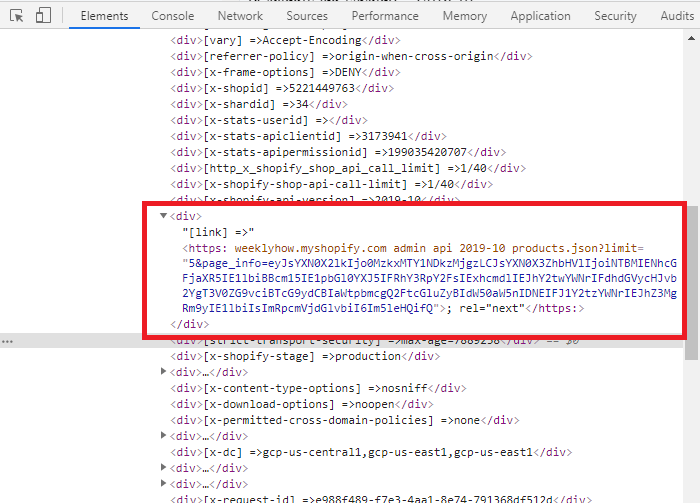
Each page will provide you a set of links (aka. page info) in the header that you can use to go to the next or previous set of items.
To properly explain this… Let’s say we have 200 products, and we want to display 10 products per page.
If we are on the very first page of our products, the API will give us just one link in the header, for us to be able to go to the next page.
If we are on the second page, the API will give us two links in the header, one for the previous page and one for the next page.
And so on, and so forth.
REST API Function
If this is your first time working with PHP, keep in mind that we are using the following functions.php. In this PHP file, we have a function that allows us to do API calls. So if you don’t have this function, you won’t be able to get products from Shopify API.
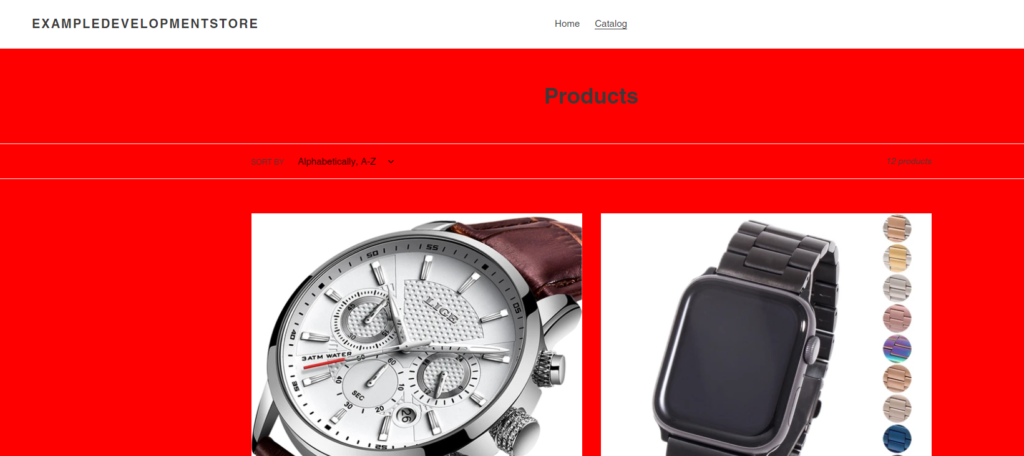
Awesome! Now we’re just displaying the first 5 products.
Previous & Next Buttons
Now that we have successfully displayed and limit our products. Let’s create the buttons that we’re going to use to navigate to the next page (…and also the previous page of course).
Just underneath your unordered list element, add the following code.
If you’re using the same function that we used for developing Shopify apps, then you’ll most likely encounter the very same bug that we experience whenever we use the rest_api() function.
If you use the said function just for the sake of returning Shopify’s response, then you might think that there’s no problem at all.
However, when you use the function to get headers, specifically for making pagination. You will notice that there’s something wrong/missing and that is the link header.
The main reason why that’s happening is because of the ‘colons’ in the header.
The functions.php file is simply using the explode() function to create an array for the header. Then loop through each key in the array, and explode once again with the help of colon this time. That’s also where the issue starts to develop.
Since URLs have their own colon (https://), the function explode will obviously malfunction.
So with all that being said, let’s update our functions.php.
We basically got everything we need to display our products and pagination. Now let’s work with AJAX so we can retrieve the next and previous products.
Just before your body closing tag, add the following code.
First of all, we need to get everything that we need such as our access token, our shop subdomain, and the data values that we passed through AJAX.
Next, we’ll create the API. So just underneath the code, add the following:
//Create an array for the API$array = array(
'limit' => 5,
'page_info' => $page_info,
'rel' => $rel
);
$products = rest_api($access_token, $shop_url, "/admin/api/2021-07/products.json", $array, 'GET');
Code language:PHP(php)
Next, we’ll create everything we need for our headers, check if the link header contains two page_infos, otherwise retrieve the default value.
//Get the headers$headers = $products['headers'];
//Create an array for link header$link_array = array();
//Check if there's more than one links / page infos. Otherwise, get the one and only link providedif( strpos( $headers['link'], ',' ) !== false ) {
$link_array = explode(',', $headers['link'] );
} else {
$link = $headers['link'];
}
Code language:PHP(php)
Next, we’ll create another set of variables and check if the $link_array count is greater than one. If it is, then we take the two page_infos from each link array. Otherwise, just get what’s provided.
And last but not least, we’ll create the variable for our frontend to display the next set of products.
//Create and loop through the next or previous products$html = '';
$products = json_decode($products['data'], true);
foreach($products as $product) {
foreach($product as $key => $value) {
$html .= '<li>' . $value['title'] . '</li>';
}
}
Code language:PHP(php)
Seriously though, this is the last…
Let’s encode everything into JSON and pass it back to AJAX.
//Then we return the values back to ajaxecho json_encode( array( 'prev' => $prev_link, 'next' => $next_link, 'html' => $html ) );
Code language:PHP(php)
Save all your files and you should have the following output.
Conclusion
If you have reached this part then good job! You have successfully learned how to create pagination for your Product API. Obviously, there are plenty of other ways to do this but this tutorial is just to give you an idea that it is possible to make paginations for products.
If you have concerns or questions, don’t hesitate to let us know in the comments below!
I’ve recently published a course where I teach how to create Shopify apps and in that course, I’ve taught how to add JavaScript files using ScriptTag API. However, I’ve never really used that lesson entirely to show how powerful ScriptTags are when it comes to improving Shopify stores.
In this article, we will talk about how you customize your Shopify store using ScriptTag API.
Getting Started
Before we start this tutorial, I want to disclose that I will be using the course Shopify app development with Node & React as the reference. What I mean is I will use the codes from the course BUT it does not truly matter as you will do the same steps for your ScriptTag file (aka JavaScript file).
Okay, so let’s say we have the following JS file that allows us to install a ScriptTag to our development store.
const axios = require('axios');
const createScriptTag = async (accessToken, shop) => {
const url = `https://${shop}/admin/api/2021-04/script_tags.json`;
const src = 'https://test.com/test.js';
let scriptTagExist = false;
const shopifyHeader = (token) => ({
'Content-Type': 'application/json',
'X-Shopify-Access-Token': token,
});
const scriptTagBody = JSON.stringify({
script_tag: {
event: 'onload',
src,
},
});
const getScriptTags = await axios.get(url, { headers: shopifyHeader(accessToken) });
getScriptTags.data.script_tags.map((script) => {
if(script.src == src) {
scriptTagExist = true;
}
});
if(!scriptTagExist) {
await axios.post(url, scriptTagBody, { headers: shopifyHeader(accessToken) })
.then(response => { console.log(response); })
.catch(error =>console.log(error));
} else {
//IF THE SCRIPT TAG IS ALREADY INSTALLED, HERE IS WHERE YOU WILL BE DISPLAYING THE MESSAGE://YOU HAVE ALREADY INSTALLED THE SCRIPTTAGreturnJSON.stringify({scriptTagStatus: true});
}
}
module.exports = {
createScriptTag
}
Code language:JavaScript(javascript)
In the code above, we have the function createScriptTag that uses the ScriptTag API endpoints (GET & POST) to check if there is an existing ScriptTag with the same URL that we set for the src variable. If there’s none then the function will create the Script Tag.
Once the script tag is installed, you can now work on the javascript file that you use for ScriptTag API.
Using Script Tags to customize store front
When I say script tags, these are the javascript files that you imported using the ScriptTag API and to be honest with you, it’s not that TOO complicated. In fact, once the javascript files are imported to your Shopify store, you can finally customize the JavaScript file and use it to add stuff or edit stuff to your Shopify storefront.
Say for example, we had the JavaScript file here https://test.com/test.js
By opening your Shopify store, you should have the following output:
Woah, that’s it? That’s just too boring and simple…
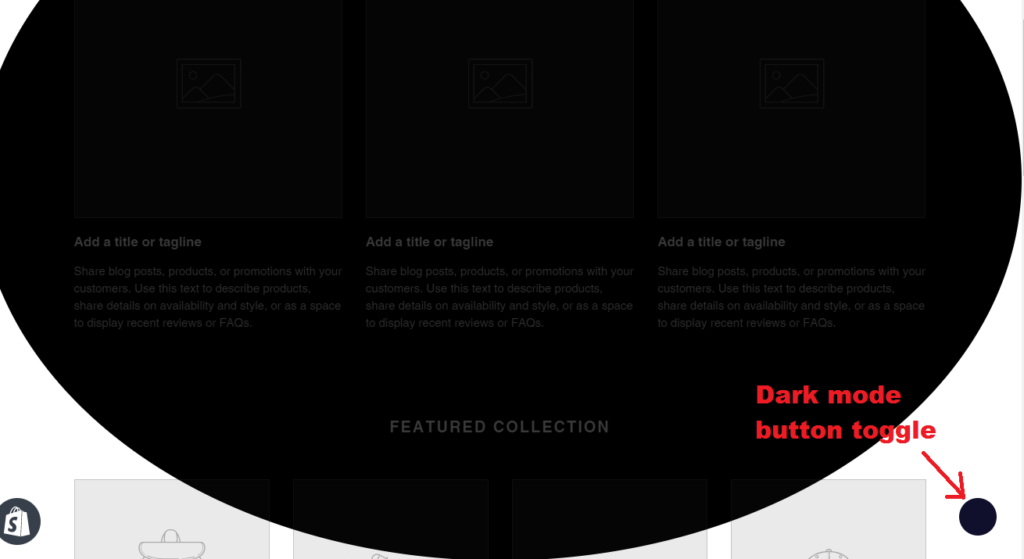
Well, if you know JavaScript, you can basically DO ANYTHING you want to customize the frontend. Do you want to change the background color of your whole page? You can do that.
Do you want to use a library and extend the functionality of your Shopify store? Heck yeah you can do that!
let darkmode;
functionaddWidget() {
darkmode = new Darkmode();
darkmode.showWidget();
}
var script = document.createElement('script');
script.onload = function () {
window.addEventListener('load', addWidget);
darkmode.toggle();
};
script.src = 'https://cdn.jsdelivr.net/npm/darkmode-js@1.5.7/lib/darkmode-js.min.js';
document.head.appendChild(script);
Code language:JavaScript(javascript)
Conclusion
There are a LOT of things that you can do with Script Tags. You know what they say? The sky is the limit! So go ahead and experiment with your codes and make your Shopify store more interactive and unique using JavaScript. There are hundreds of libraries out there that you can use to make your websites or store look like a badass. One of my favorites is the SweetAlert2. It’s lightweight and very easy to use.
I have a video using that library so if you’re interested, you can watch it here: