Search Results for: app development

Serverless with AWS Lambda & API Gateway (Amazon Web Services)

If you have been developing web applications in your whole career, chances are you already know how much boring server management is and how it can give you too many responsibilities like keeping your operating systems up to date and every software inside your server.

Not only that, A server is very expensive and unreliable! So if you are developing web applications and you are gaining too much traffic, obviously, your web server could potentially go down and you will need to upgrade your server which means another expense to your wallet. In contrast, if you are not getting web traffic at all, then you are just paying for a server capacity that you are not actually using.

Introduction

In this article, we’ll be providing you an interesting alternative, a solution or an idea in which you can run your web applications without managing servers.

Well, obviously you WILL still going to be using servers because there has to be a place where your application can be reached. However, there is a service called AWS also known as Amazon Web Services.

What is Amazon Web Services (AWS)?

What is Amazon Web Services (AWS)?

Amazon Web Services is a cloud computing department of Amazon that provides on-demand cloud computing platforms to individuals, companies, and governments, on a metered pay-as-you-go basis. Currently, you can create an account for AWS for free without paying for 12-months. However, this depends on how much memory or server capacity you are using. So if you are under the 12-month free tier then it’s better to keep your usage low.

AWS also offers a service where a group of servers is rigged together which allows you to provide a code on demand. So if you get a request, you can execute a certain code or do something as a response to that request, without actually provisioning or managing servers.

Why use AWS?

There are plenty of reasons why you should start using AWS. One of the reasons is how convenient for developers to use servers without actually managing it. But of course, that’s not the only reasons.

Per-hour Billing

Billing is one of another reason why you should also use AWS. By using AWS, you will get a per-hour billing. Every instance or service you use has a micro-billing which is very transparent. Even S3 buckets are charged on a GB basis. It might sound very expensive but in our experience, Amazon Web Services is one of the least expensive services compared to other host providers.

Easy to Sign Up

Signing up to Amazon Web Services is very easy. Just visit AWS official website and click the sign-up button at the right top corner. Though by signing up to AWS, you are required to provide your credit card details.

After signing up to AWS, you will be able to setup your servers in just 2-minutes without procuring any hardware which is very fast compared to other service providers.

Billing Interface

With Amazon Web Services, you will be provided an integrated dashboard which gives you reports about your current billing. With this interface, you may pull out your reports based on which services you used or based on any parameters.

Performance

There’s no doubt that AWS is fast. With the help of AWS tools, Autoscaling, and elastic load balancing, your application can be scaled up and down based on demand. With Amazon’s massive infrastructure, you have access to compute and storage the resources whenever you need them.

Security

AWS provides VPC, which can be used to host services on a private network which is not accessible from the internet but can communicate with the resources in the same network. This will restrict access to the resources from any bad users from the internet. The only way to access these resources is by using the Amazon VPN or some open source services like OpenVPN or NordVPN.


In this article, we’ll be more focusing on AWS Lambda (also known as Lambda for short).

What is AWS Lambda?

AWS Lambda is a serverless computing service provided by AWS where you can basically provide functions which encapsulates the code you want to execute depending on certain triggers. And while we don’t need to deal with the internals of how Lambda works, it is important to have a general idea of how your functions will be executed using Lambda.

Let’s start with Lambda’s technical specifications. Currently, Lambda supports the following runtime:

  • Node.js: v10 and v8.10
  • Java 8
  • Python: 3.7, 3.6, and 2.7
  • .NET Core: 1.0.1 and 2.1
  • Go 1.x
  • Ruby 2.5

You may also use other languages in Lambda by implementing a custom runtime. The Lambda execution environment provides a runtime interface for getting invocation events and sending responses.

What are some good uses for AWS Lambda?

There are plenty of good uses for AWS Lambda. Whenever there’s an event in your application, you may send a request to Lambda and it will return you a function.

For example:

AWS Lambda Triggers an Event on Image Upload

In the example above, an event was triggered when an image is uploaded to S3 Bucket and as a response, Lambda resized and cropped the image and return it to the user.

There are a couple more good uses for Lambda, like:

  • Send a notification when the users interact with some functions.
  • Send receipt to the seller when you purchase an item
  • Show more posts as the user scrolls down the page
  • Get user’s data on login or send data on logout.
  • Backup data every midnight

What is more amazing with AWS Lambda is that you can use it with other AWS services such as API Gateway.

What is API Gateway?

Amazon API Gateway is a fully managed service that makes it easy for developers to build, distribute, maintain, monitor, and secure APIs at any scale. With just a few clicks in the AWS Management Console, you can create REST and WebSocket APIs that act as a “front door” for applications to access data, business logic, or functionality from your backend services, such as workloads running on Amazon Elastic Compute Cloud (Amazon EC2), code running on AWS Lambda, any web application, or real-time communication applications.

API Gateway handles all the tasks involved in accepting and processing up to hundreds of thousands of concurrent API calls, including traffic management, authorization, and access control, monitoring, and API version management. API Gateway has no minimum fees or startup costs. You pay only for the API calls you receive and the amount of data transferred out and, with the API Gateway tiered pricing model, you can reduce your cost as your API usage scales.

How API Gateway Works?

New-API-GW-Diagram

API Gateway Features

Easy API Creation and Deployment

With API Gateway, you can quickly and easily create a custom API to your code running in AWS Lambda and then call the Lambda code from your API. API Gateway can execute AWS Lambda code in your account, start AWS Step Functions state machines, or make calls to AWS Elastic Beanstalk, Amazon EC2, or web services outside of AWS with publicly accessible HTTP endpoints. Using the API Gateway console, you can define your REST API and its associated resources and methods, manage your API lifecycle, generate your client SDKs, and view API metrics.

Support for REST APIs and WebSocket APIs

With API Gateway, you can create REST APIs that leverage HTTP request types or WebSocket APIs that enable you to build real-time two-way communication applications, such as chat apps and streaming dashboards. A REST API is a group of resources and methods or endpoints. They can be deployed to different stages and cloned to new versions. A WebSocket API maintains a persistent connection between connected clients. You can define backend integrations with AWS Lambda functions, Amazon Kinesis, or any HTTP endpoint to be invoked when messages are received from the connected clients.

Resiliency

API Gateway helps you manage traffic to your backend systems by allowing you to set throttling rules based on the number of requests per second for each HTTP method in your APIs. In addition, you can set up a cache with customizable keys and time-to-live in seconds for your API data to avoid hitting your backend services for each request. API Gateway handles any level of traffic received by an API, so you are free to focus on your business logic and services rather than maintaining infrastructure.

API Lifecycle Management

API Gateway lets you run multiple versions of the same API simultaneously so that applications can continue to call previous API versions even after the latest versions are published. API Gateway also helps you manage multiple release stages for each API version, such as alpha, beta, and production. Each API stage can be configured to interact with different backend endpoints based on your API setup. Specific stages and versions of an API can be associated with a custom domain name and managed through API Gateway. Stage and version management allows you to easily test new API versions that enhance or add new functionality to earlier API releases and ensures backward-compatibility as user communities transition to adopt the latest release.

SDK Generation

API Gateway can generate client SDKs for a number of platforms, which you can use to quickly test new APIs from your applications and distribute SDKs to third-party developers. The generated SDKs handle API keys and sign requests using AWS credentials. API Gateway can generate client SDKs for Java, JavaScript, Java for Android, Objective-C or Swift for iOS, and Ruby. You can use AWS CLI to generate and download an SDK of an API for a supported platform by calling the get-sdk command.

API Operations Monitoring

After an API is deployed and in use, API Gateway provides you with a dashboard to visually monitor calls to the services. The API Gateway console is integrated with Amazon CloudWatch, so you get backend performance metrics such as API calls, latency, and error rates. Because API Gateway uses CloudWatch to record monitoring information, you can set up custom alarms on API Gateway APIs. API Gateway can also log API execution errors to CloudWatch Logs to make debugging easier.

AWS Authorization

To authorize and verify API requests to AWS services, API Gateway can help you leverage signature version 4 — the same technology used by AWS for its services. Using signature version 4 authentication, you can use AWS Identity and Access Management (IAM) and access policies to authorize access to your APIs and all your other AWS resources. You can also use AWS Lambda functions to verify and authorize bearer tokens such as JWT tokens or SAML assertions.

API Keys for Third-Party Developers

API Gateway helps you manage the ecosystem of third-party developers accessing your APIs. You can create API keys on API Gateway, set fine-grained access permissions on each API key, and distribute them to third-party developers to access your APIs. You can also define plans that set throttling and request quota limits for each individual API key. The use of API keys is completely optional and must be enabled on a per-method level.

Conclusion

Whenever you develop web applications, you are required to have a server where it is reachable by the internet. Some server providers will give you good features and some providers don’t. It’s just a matter of experimentation. But if you are going new to web development then It is much better to immediately try Amazon Web Services, as it will save you a lot of time and a lot of expenses.

How to Create a Responsive React Navbar | React.js Tutorial

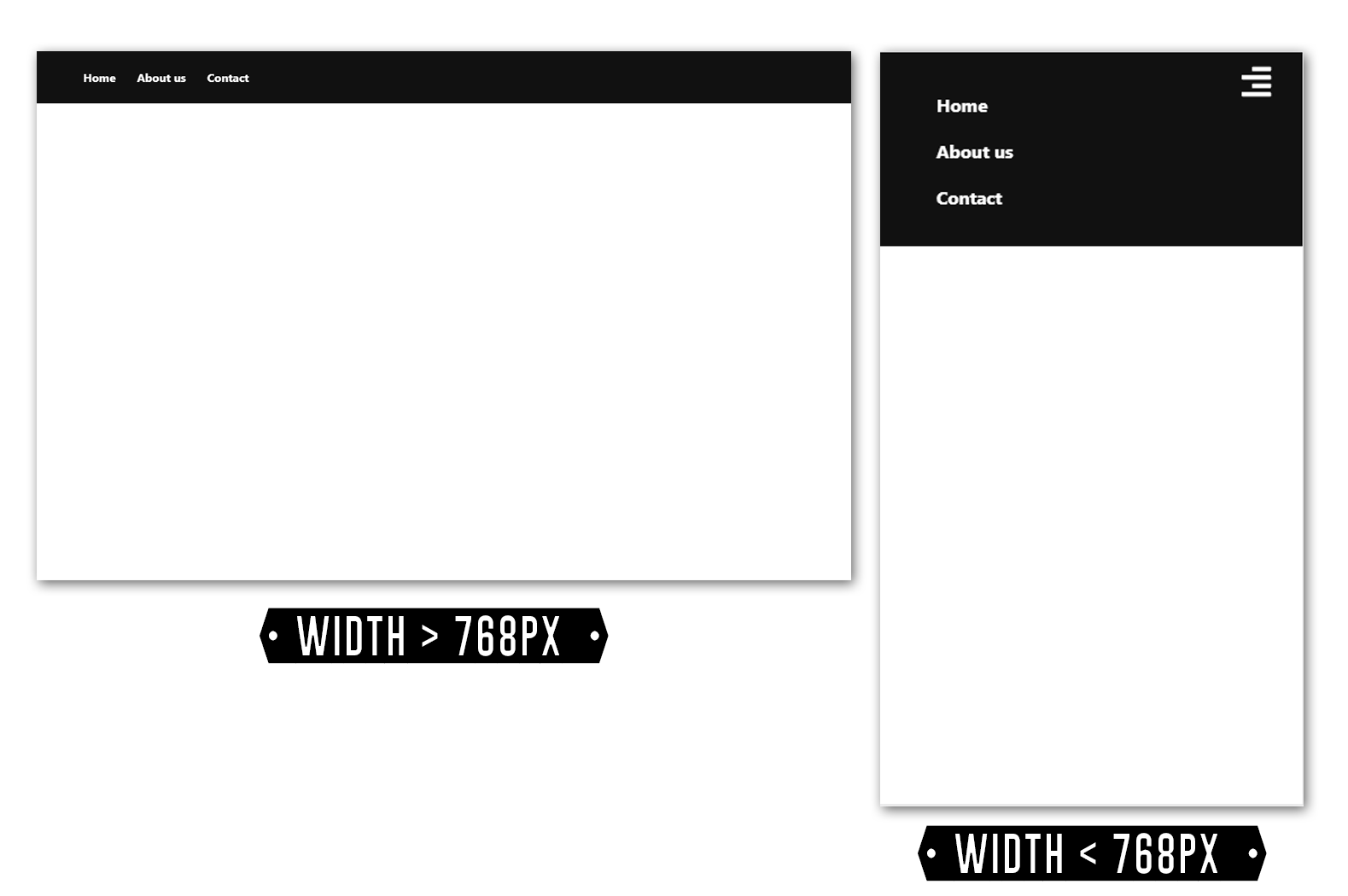
I have been using React a lot now and whenever I create a React app, I always start with a navbar. So, how do we create a responsive navigation bar?

There are lots of ways to create a navigation bar. But, in this article, I’ll be providing you the easiest way to create a navbar without putting too much effort since you have much important stuff to add in your website. Right?

So before we get started, make sure you have your Node.js ready and installed. So I will assume that in this tutorial, you already have Node.js. However, if somehow you don’t have it installed, then I suggest you follow this article on how to set up your Node.js.

Getting Started

Of course, we are going to create this navbar from scratch. So get yourself a new project by typing in your command prompt/terminal.

mkdir react-navbar && cd react-navbarCode language: Bash (bash)

The command above will give us a new folder for our React project. If you want, you can change the name to something you like.

Next, use this command.

npm initCode language: Bash (bash)

This code will create a package.json which is important for all projects. You will see something like this in your terminal.

C:\User\WeeklyHow\Node Projects\react-navbar>npm init
This utility will walk you through creating a package.json file.
It only covers the most common items, and tries to guess sensible defaults.

See `npm help json` for definitive documentation on these fields
and exactly what they do.

Use `npm install <pkg>` afterwards to install a package and
save it as a dependency in the package.json file.

Press ^C at any time to quit.
package name: (react-navbar)Code language: Bash (bash)

Once you see something like those, just proceed by pressing your Enter key.

You see, the prompt above will actually ask you for details about your project. So if you want to change the description, keywords, author, etc. You can do so.

But for the sake of the simplicity of this tutorial, I won’t bother that much about it.

Installing Create React App

Next, use this command

npm install -g create-react-appCode language: Bash (bash)

This will install React.js and its components.

npma command from Node.js that contains packages
installa command for installing packages from npm registry
-gGlobal
create-react-appThe package that we are about to install

Installing React-icons

And oh, I think it’s good if we also install some icons from Font Awesome. So use this command:

npm install react-icons --saveCode language: Bash (bash)

After installing react-icons, you may see some errors related to DEPENDENCY or incompatibility. Just ignore it.

Next, use this command.

create-react-app  react-navbar-projectCode language: Bash (bash)

If the command above successfully worked for you, then you should see a result something like this

C:\Users\WeeklyHow\Node Projects\react-navbar>create-react-app react-navbar-project

Creating a new React app in C:\Users\WeeklyHow\Node Projects\react-navbar\react-navbar-project.

Installing packages. This might take a couple of minutes.
Installing react, react-dom, and react-scripts...


> core-js@2.6.9 postinstall C:\Users\WeeklyHow\Node Projects\react-navbar\react-navbar-project\node_modules\babel-runtime\node_modules\core-js
> node scripts/postinstall || echo "ignore"


> core-js-pure@3.1.4 postinstall C:\Users\WeeklyHow\Node Projects\react-navbar\react-navbar-project\node_modules\core-js-pure
> node scripts/postinstall || echo "ignore"

+ react-scripts@3.0.1
+ react-dom@16.8.6
+ react@16.8.6
added 1405 packages from 726 contributors and audited 901968 packages in 386.441s
found 0 vulnerabilities


Success! Created react-navbar-project at C:\Users\WeeklyHow\Node Projects\react-navbar\react-navbar-project
Inside that directory, you can run several commands:

  npm start
    Starts the development server.

  npm run build
    Bundles the app into static files for production.

  npm test
    Starts the test runner.

  npm run eject
    Removes this tool and copies build dependencies, configuration files
    and scripts into the app directory. If you do this, you can't go back!

We suggest that you begin by typing:

  cd react-navbar-project
  npm start

Happy hacking!

C:\Users\WeeklyHow\Node Projects\react-navbar>Code language: Bash (bash)

That’s it! You have finally installed your React project.

To see the result, type the following code

cd react-navbar-project && npm startCode language: Bash (bash)

This will proceed to your project and once it found the folder it will start the app and open localhost:3000

Create React App on localhost:3000

Now, open your project folder with your favorite code editor and let’s start building a React navbar.

In this project, I’ll be using Sublime editor because it’s much lightweight than any other editors.

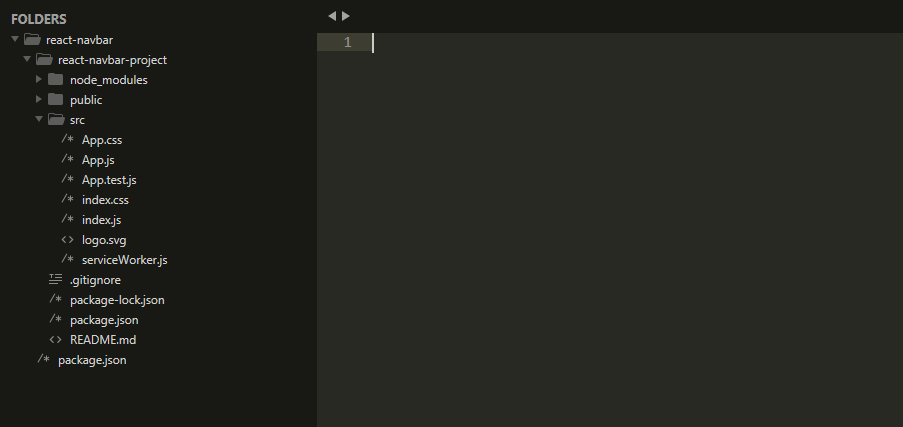
New React Project from scratch

So as you can see in our project files, we have the node_modules, public, and src folders.

We’ll be just focusing more on our src folder since that’s where most of our project files are located.

Open the App.js file and you will see the code something like this

import React from 'react';
import logo from './logo.svg';
import './App.css';

function App() {
  return (
    <div className="App">
      <header className="App-header">
        <img src={logo} className="App-logo" alt="logo" />
        <p>
          Edit <code>src/App.js</code> and save to reload.
        </p>
        <a className="App-link" href="https://reactjs.org" target="_blank" rel="noopener noreferrer">
          Learn React
        </a>
      </header>
    </div>
  );
}

export default App;
Code language: JavaScript (javascript)

Let’s delete everything and let’s start from scratch.

React Navigation Bar

First off, let’s import the following modules.

import React, { Component } from 'react';
import { FaAlignRight } from 'react-icons/fa';
import './App.css';
Code language: JavaScript (javascript)

Beautiful! Now let’s create a new Component, append this code to your script.

export default class App extends Component {
    state = {
        toggle:false
    }
    Toggle = () => {
        this.setState({toggle:!this.state.toggle})
    }
    render() {
        return (
          <>
              <div className="navBar">
                    <button onClick={this.Toggle}>
                        <FaAlignRight />
                    </button>
                    <ul className={this.state.toggle ? "nav-links show-nav" : "nav-links"}>
                        <li href="#">Home</li>
                        <li href="#">About us</li>
                        <li href="#">Contact</li>
                    </ul>
              </div>
          </>
        );
    }
}

Code language: JavaScript (javascript)

Since we have added classNames to our elements, let’s edit our App.css file and replace the following code with:

/* Elements */
li {
    padding: 10px 0;
}

button {
    font-size: 30px;
    margin-right: 30px;
    color: white;
    background: transparent;
    border: none;
    cursor: pointer;
    outline: none;
    float: right;
}

/* Class */
.navBar {
    width: 100%;
    background-color: #111;
    color: white;
    padding: 10px;
}

.links {
  height: 0;
  overflow: hidden;
  list-style-type: none;
  font-weight: bold;
}

.show-nav {
    height: 120px;
}

/* Media screen size */
@media screen and (min-width: 768px) {
    button {
        display: none;
    }

    .links {
        height: auto;
        display: flex;
    }

    li {
        padding: 0 15px;
    }
}
Code language: CSS (css)

Save everything and see the result at your browser (localhost:3000)

Responsive Navigation Bar for React Native

Mapping Navbar Links with Array

Another way to display links for navbar is by mapping objects inside an array and in our case, the objects are the links. So let’s just say we needed to add more links to the navbar. The solution is very easy, just add more values to the array and it will be displayed in the navbar.

Let’s try that.

Go back to App.js and add the following code just above the return() function.

const li = [
            {
                link: "/",
                text:"Home"
            },
            {
                link: "/about/",
                text:"About us"
            },
            {
                link: "/contact/",
                text:"Contact us"
            }
 ];
Code language: JavaScript (javascript)

And then, your new return function will look something like this:

return (
          <>
              <div className="navBar">
                    <button onClick={this.Toggle}>
                        <FaAlignRight />
                    </button>
                    <ul className={this.state.toggle ? "links show-nav" : "links"}>
                        {
                            li.map((objLink, i) => {
                                return ( <li><a href={objLink.link}>{objLink.text}</a></li> )
                            })
                        }
                    </ul>
              </div>
          </>
        );
Code language: JavaScript (javascript)

In the above code, you see that we used the array map() function. This will loop through the array, get all the data, and pass it to the parameter objLink.

Now going back to our React app, you will see that we produced an error.

Warning Error: Each child in a list should have a unique "key" prop

The reason why we get that error is that our array doesn’t have a ‘key’ on it. Specifically per link.

Fixing this error is very simple.

You see, in our map() function, we have a parameter named i. This will serve as the index per loop.

We can use this as the key per link.

So go ahead to your <li> tag and add the property key and give it the value of i.

Something like this:

<li key={i}><a href={a.link}>{a.text}</a></li>
Code language: JavaScript (javascript)

Hit save and see if there’s still an error.

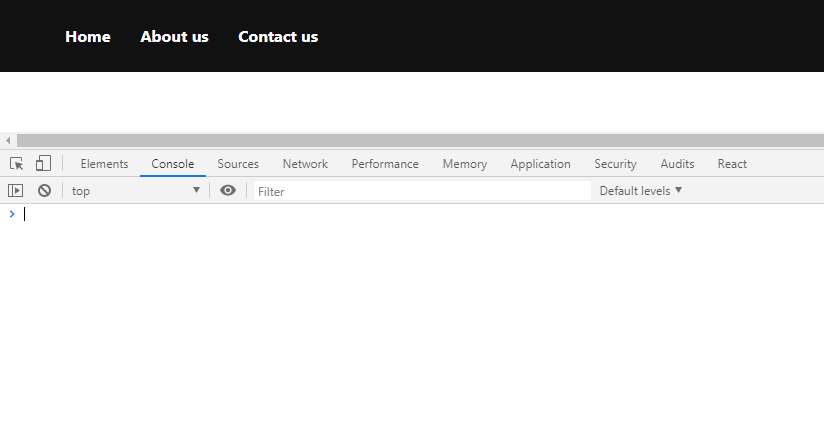
Navbar links with mapped array values

Bloop! No errors, that means everything is working now.

Conclusion

Creating a navbar is very easy especially if you use React. In this lesson, hopefully we have learned on how to create a navbar using React as well as mapping links inside an array.

If you encounter errors in this lesson, don’t hesitate to share them in the comments below and we’ll be helping you fix the problem as soon as possible.

And if you have suggestions or requests, writing them in the comments below will help us too.

Thank you for reading!

[Tutorial] Unity v2019.1.1f1 & PUN 2 Multiplayer Networking Series

Have you ever thought of making a multiplayer game using Game Engines like Cry or Unity? You might be wondering how hard it is to create such games. Well, as a matter of fact, creating multiplayer games is not that hard to do. Especially if the API that you’re using provides documentation that is very easy to understand.

There are a number of frameworks that can help you with server hosting. One of them is Photon Network also known as PUN. Short of Photon Unity Networking.

What is Photon Unity Networking?

Photon is a real-time multiplayer game development framework that is fast, lean, and very flexible. It consists of a server and multiple client SDKs for major platforms.

What are the features of PUN?

If you are wondering about the features of Photon Unity Networking. They provide:

  • A very easy to learn API
  • Lots of demos and an extensive PUN Basics Tutorial
  • Server available as hosted service (free for development) or as “On-Premise”
  • Load-balanced! Scales across servers (with no extra effort)
  • Outstanding performance of the Photon Server
  • Dedicated servers. No NAT punch-through needed
  • Offline mode: re-use your multiplayer code in single player game modes

What is the latest release of PUN?

PUN 2 is the latest release of their API which has been improved a lot compared to their last release. Unlike the previous one, this latest version is much more secure and easy to code. Although they’ve changed a lot of function calls they are pretty much easy to remember.

So if you are used to the previous version of PUN, migrating to this newer version won’t be that hard to do.

In this article, we’ll be guiding you on how to use Photon Unity Networking (PUN 2) with Unity 2019.1.1f1.

Download and Import PUN 2

To download Photon Unity Networking, follow the steps below:

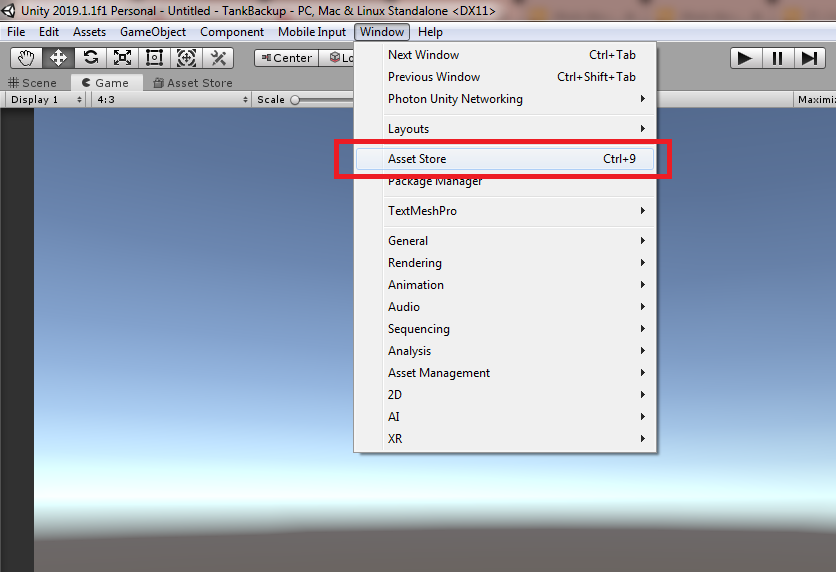
  • In your Unity Editor, open up Asset Store by clicking on the Window tab and click Asset Store or you can do a shortcut by pressing CTRL + 9.
Open Asset store in Unity Editor
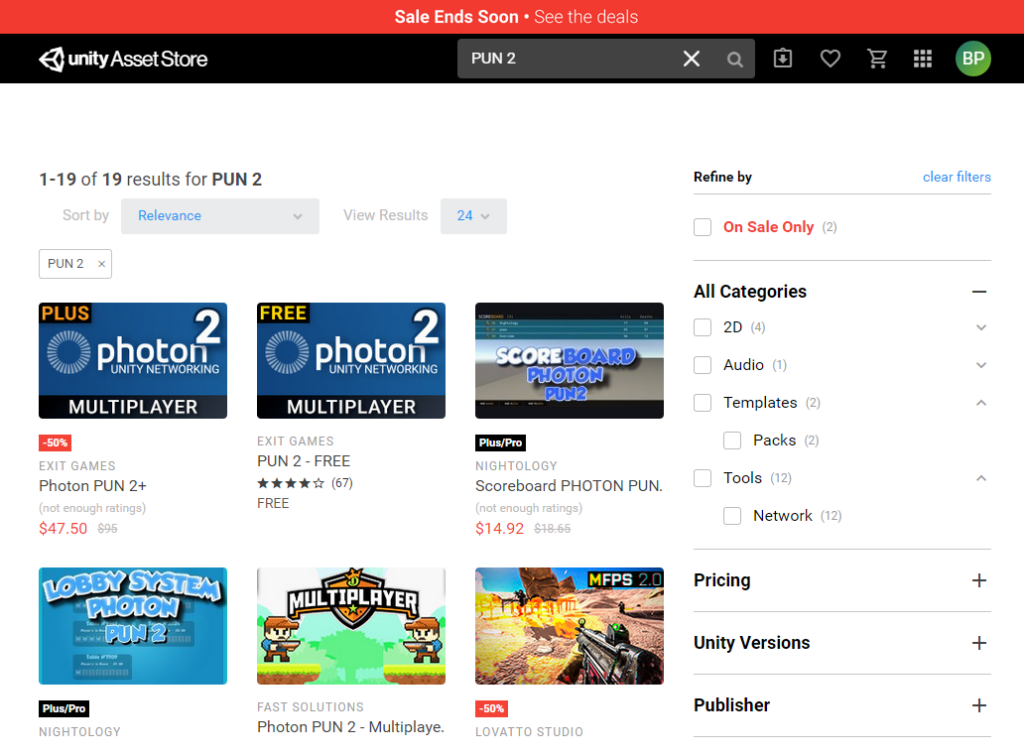
  • Next, click on the search bar and type PUN 2.
download photon unity networking 2
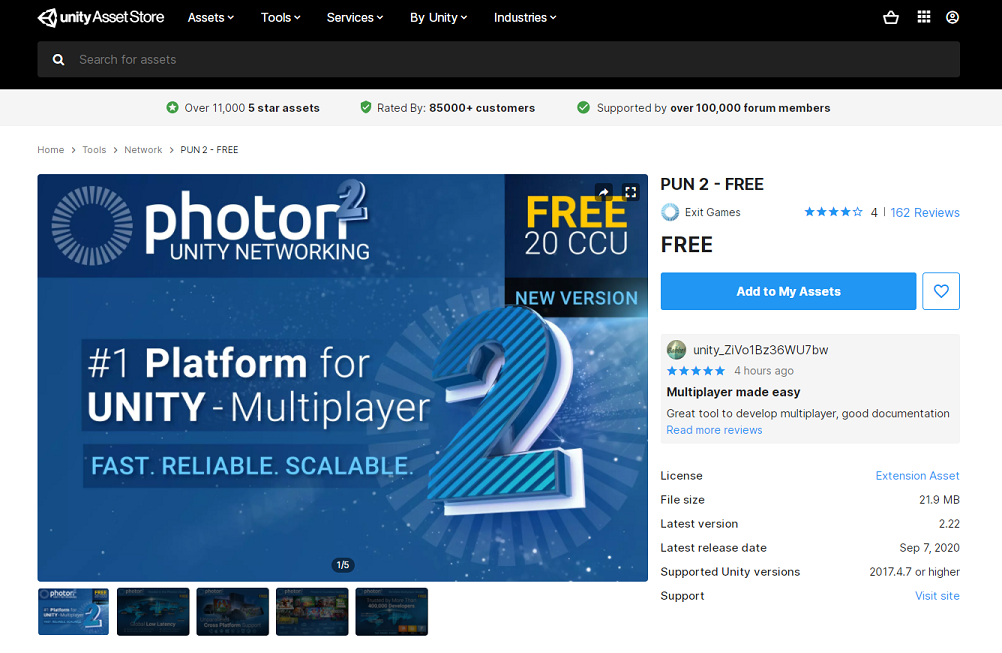
  • Choose PUN 2 -FREE
Import PUN 2 to your unity project
  • Once opened, click download and wait until you can add it to your asset files or project.

Getting Photon App ID

Now before we proceed, we have to create first a Photon App ID. You can do this by going to their official website at photonengine.com.

Once arrived, log in with your account or if you haven’t registered yet, do so by clicking on Sign up.

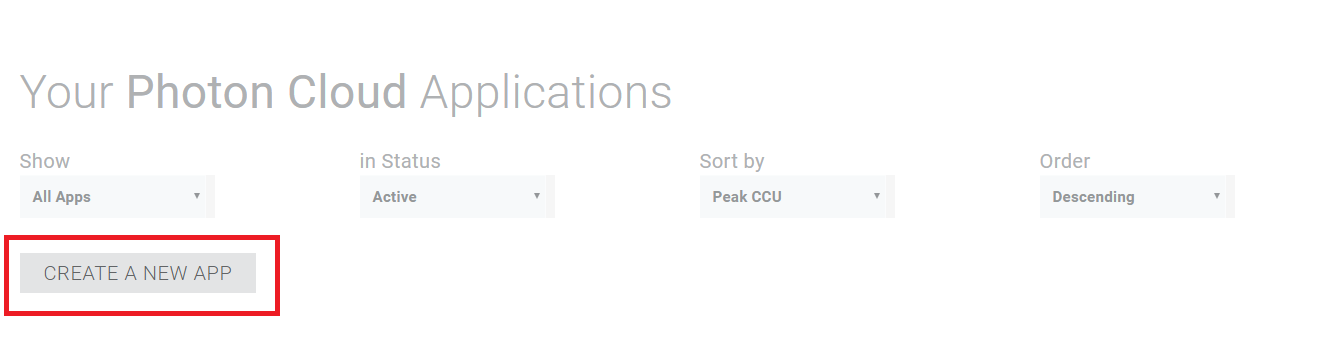
Next, once you’re logged in and arrived at the dashboard. Click Create a New App like what’s seen in the image below.

Create new app in Photon

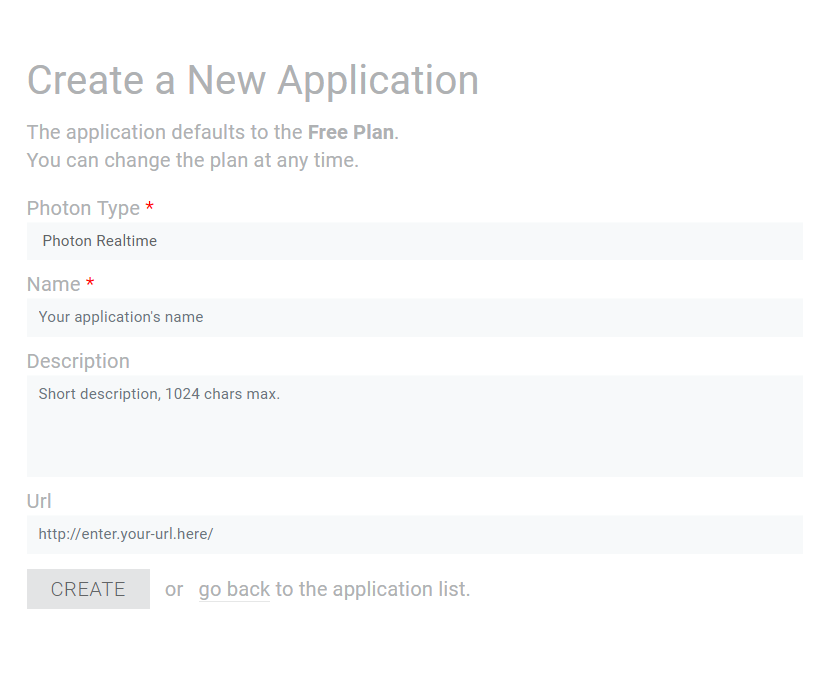
After clicking the button, fill in the form like what you’re seeing in the image below:

For Photon Type: Choose Photon PUN or Photon Realtime
Name: Name of your Project
Description: Any description you want or you can leave this empty
URL: leave this blank

Once done, click create.

Form for New App ID creation for Photon Unity Networking

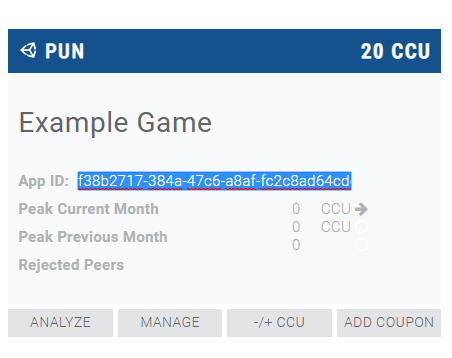
Look for the panel like below and copy the App ID. Make sure it has the same name as the one you have typed in the form.

Photon Unity Network App ID Creation Guide

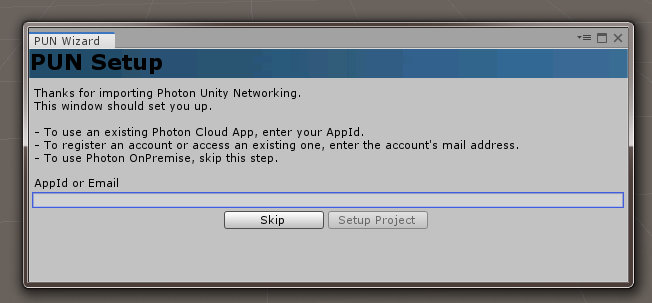
Next, go back to your Unity Editor and Paste the App Id in the window like what you’re seeing in the image below:

Photon Unity Network Setup Wizard example

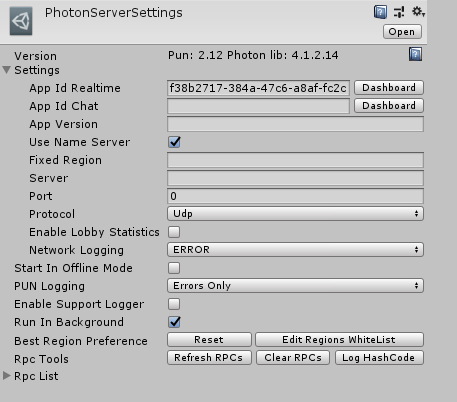
Remember, you’ll only see this wizard above after you imported PUN 2 from the asset store. If somehow, you don’t see this or you have accidentally skipped the wizard, you can find the server settings in folders path:

Assets > Photon > PhotonUnityNetworking > Resources and click PhotonServerSettings and just paste the App ID in the App Id Realtime input box like below.

Example of Photon Server Settings of Photon Unity Networking

That’s it! Now you have successfully connected your game with Photon Network.

Conclusion

Now that we have successfully connected our Unity Project with Photon Networking, we can now create a lobby and room where other players can join.

In the next tutorial, we’re going to setup our lobby using UI canvas and other components provided by Unity. To proceed click the next article below: